Author Archives: Anil Kumar Pugalia

About Anil Kumar Pugalia

The author is a hobbyist in open source hardware and software, with a passion for mathematics, and philosopher in thoughts. A gold medallist from the Indian Institute of Science, Linux, mathematics and knowledge sharing are few of his passions. He experiments with Linux and embedded systems to share his learnings through his weekend workshops. Learn more about him and his experiments at https://sysplay.in.

Figures, Graphs, and Plots in Octave

This twelfth article of the mathematical journey through open source, shows the mathematical visualization in octave.

<< Eleventh Article

Mathematics is incomplete without visualization, without drawing the results, and without plotting the graphs. octave uses the powerful gnuplot as the backend of its plotting functionality. And in the frontend provides various plotting functions. Let’s look at the most beautiful ones.

Basic 2D Plotting

The most basic plotting is using the plot() function, which takes the Cartesian x & y values. Additionally, you may pass, as how to plot, i.e. as points or lines, their style, their colour, label, etc. Supported point styles are: +, *, o, x, ^, and lines are represented by -. Supported colours are: k (black), r (red), g (green), b (blue), y (yellow), m (magenta), c (cyan), w (white). With this background, here is how you plot a sine curve, and Figure 12 shows the plot.

$ octave -qf
octave:1> x = 0:0.1:2*pi;
octave:2> y = sin(x);
octave:3> plot(x, y, "^b");
octave:4> xlabel("x ->");
octave:5> ylabel("y = sin(x) ->");
octave:6> title("Basic plot");
octave:7>
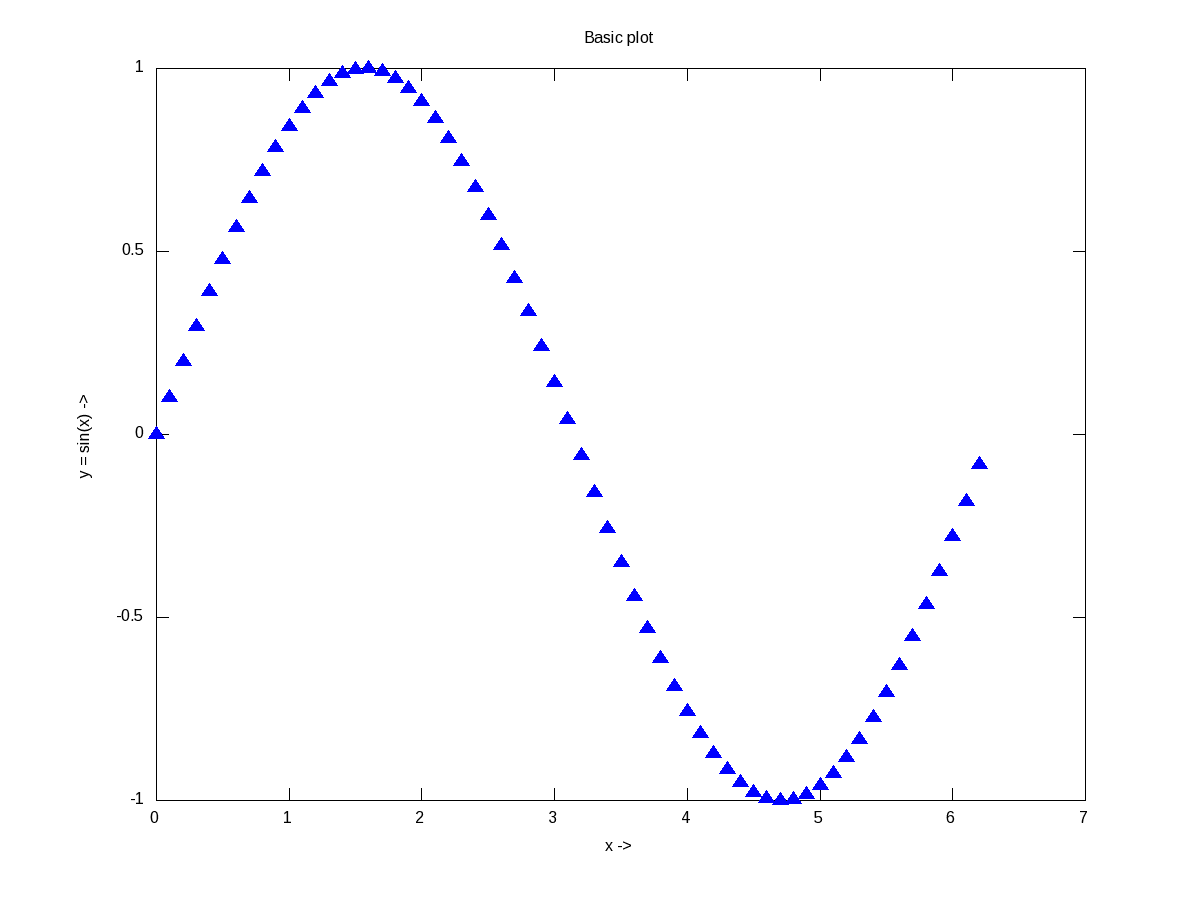
Figure 12: Basic plotting in octave

Figure 12: Basic plotting in octave

xlabel(), and ylabel() adds the corresponding labels, and title() adds the title. Multiple plots can be done on the same axis as follows, and Figure 13 shows the plots. Note the usage of legend() to mark the multiple plots.

$ octave -qf
octave:1> x = 0:0.1:2*pi;
octave:2> plot(x, sin(x), "*", x, 1 + sin(x), "-", x, cos(x), "o");
octave:3> xlabel("x ->");
octave:4> ylabel("y ->");
octave:5> legend("sine", "1 + sine", "cosine");
octave:6> title("Multiple plots");
octave:7>
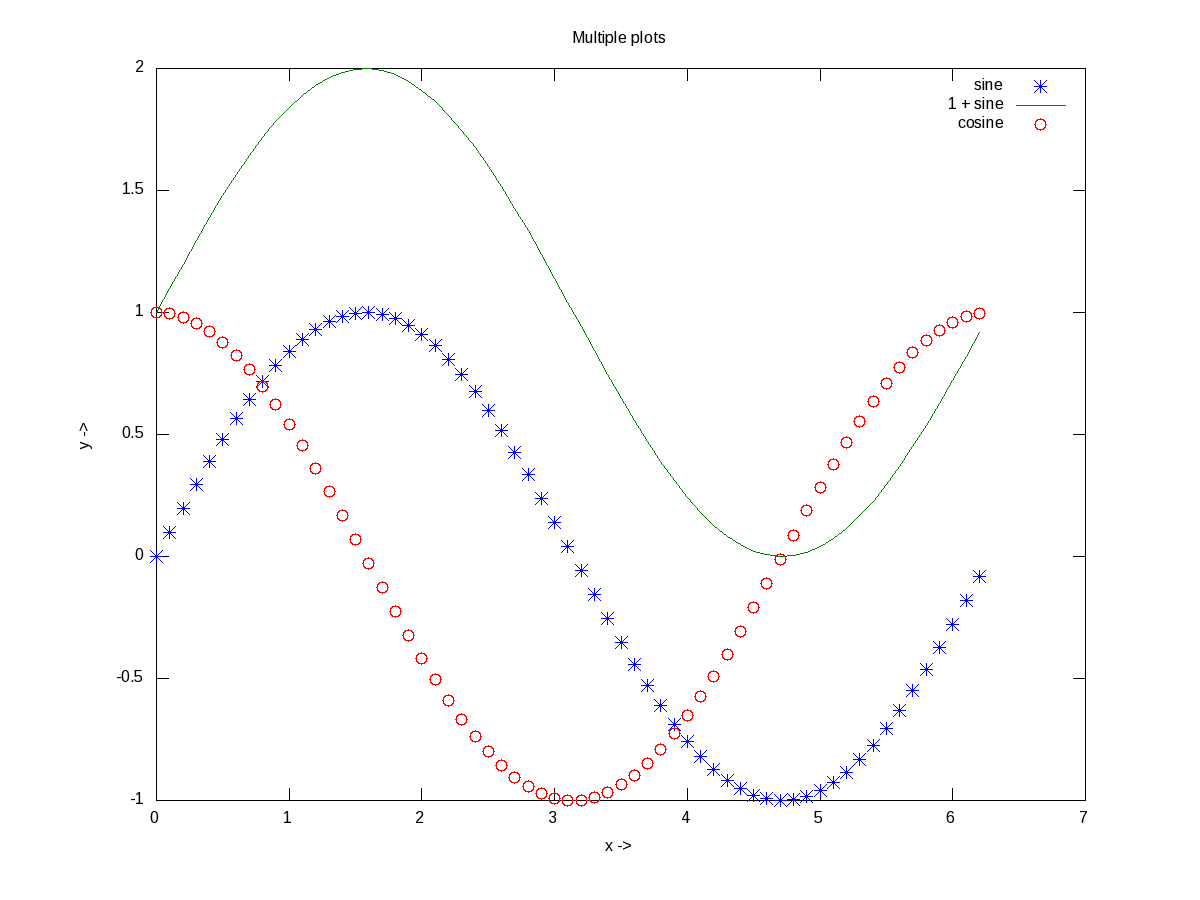
Figure 13: Multiple plots on the same axis

Figure 13: Multiple plots on the same axis

Advanced 2D Figures

Now, if we want to have the multiple graphs on the same sheet but with different axes as shown in Figure 14, here is how to do that:

octave:1> t = 0:0.1:6*pi;
octave:2> subplot(2, 1, 1);
octave:3> plot(t, 325 * sin(t));
octave:4> xlabel("t (sec)");
octave:5> ylabel("V_{ac} (V)");
octave:6> title("AC voltage curve");
octave:7> grid("on");
octave:8> subplot(2, 1, 2);
octave:9> plot(t, 5 * cos(t));
octave:10> xlabel("t (sec)");
octave:11> ylabel("I_{ac} (A)");
octave:12> title("AC current curve");
octave:13> grid("on");
octave:14> print("-dpng", "multiple_plots_on_a_sheet.png");
octave:15>
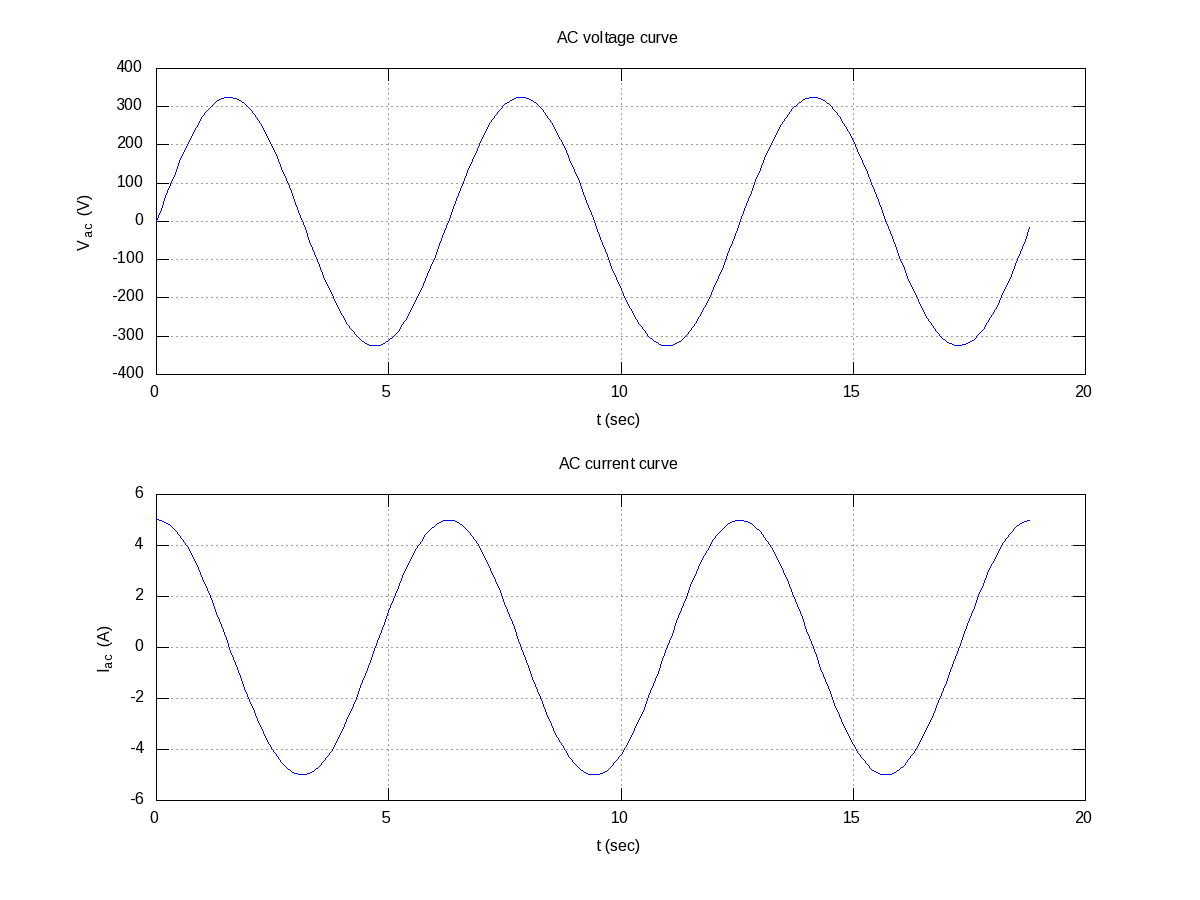
Figure 14: Multiple plots on a sheet

Figure 14: Multiple plots on a sheet

Note the usage of subplot(), taking the matrix dimensions (row, column) and the plot number to create the matrix of plots. In the example above, it created a 2×1 matrix of plots. As add-ons, we have used the grid(“on”) to show up the dotted grid lines, and print() to save the generated figure as a .png file.

It is not always easy to plot everything in Cartesian co-ordinates, or rather many things are easier to plot in polar co-ordinates, e.g. a spiral, circle, heart, etc. The following code & Figure 15 shows a few such examples. Shown along with is a technique of modifying the figure properties, after drawing the figure using the set() function. Here it modifies the line thickness.

octave:1> th = 0:0.1:2*pi;
octave:2> r1 = 1.1 .^ th;
octave:3> r2 = 7 * cos(th);
octave:4> r3 = 5 * (1 - cos(th));
octave:5> r = [r1; r2; r3];
octave:6> ph = polar(th, r, "-");
octave:7> set(ph, "LineWidth", 4);
octave:8> legend("spiral", "circle", "heart");
octave:9>
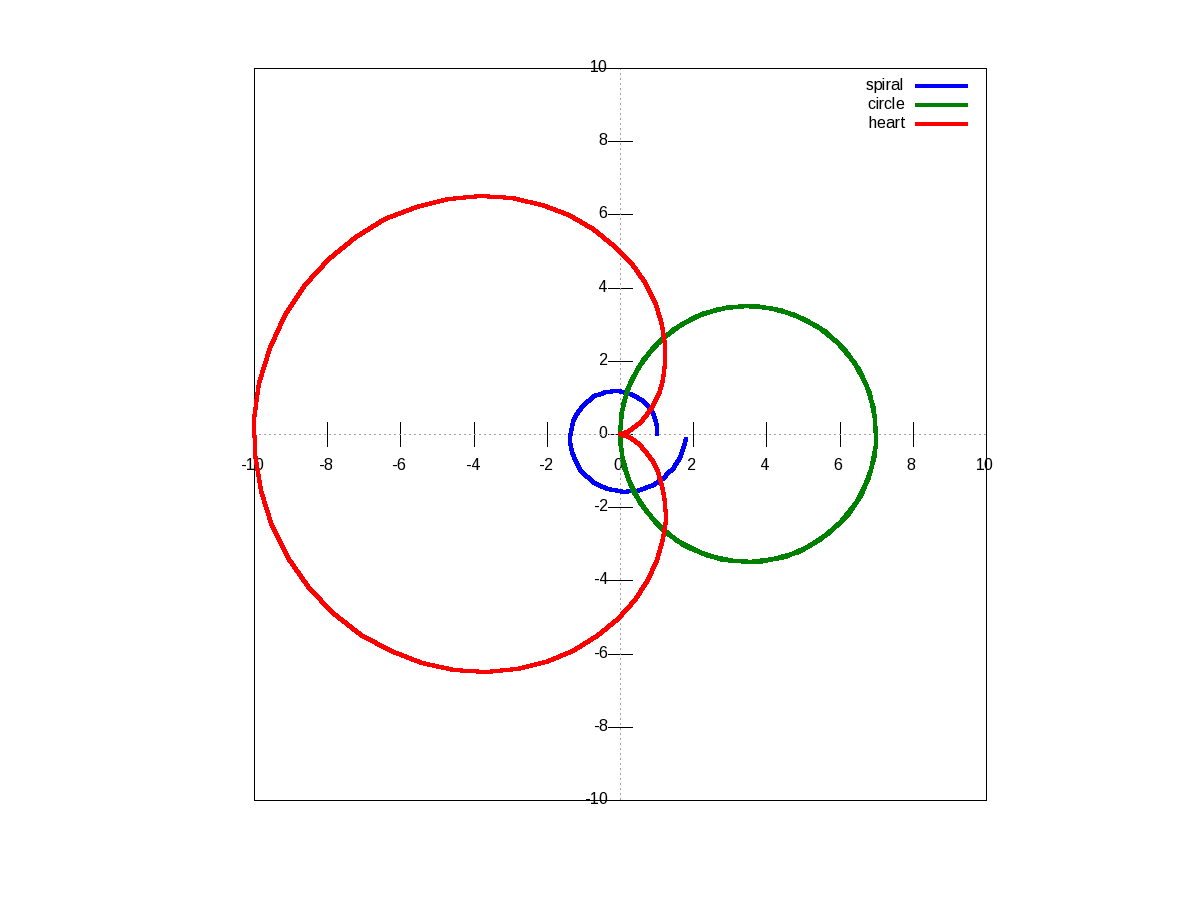
Figure 15: Polar plots

Figure 15: Polar plots

There are many other possible ways of drawing various interesting 2-D figures for all kind of mathematical & scientific requirements. So, before closing on 2-D plotting, let’s look into just one more often needed drawing – plotting with log axis, and more over with two y-axes on a single plot. The function for that is plotyy(). Note the plotyy() calling the corresponding function pointers @plot, @semilogy passed to it, in the following code segment. Figure 16 shows the output.

octave:1> x = 0:0.1:2*pi;
octave:2> y1 = sin(x);
octave:3> y2 = exp(exp(x));
octave:4> ax = plotyy(x, y1, x, y2, @plot, @semilogy);
octave:5> xlabel("x ->");
octave:6> ylabel(ax(1), "sine ->");
octave:7> ylabel(ax(2), "e^{e^x} ->");
octave:8> title("Mixed plots");
octave:9>
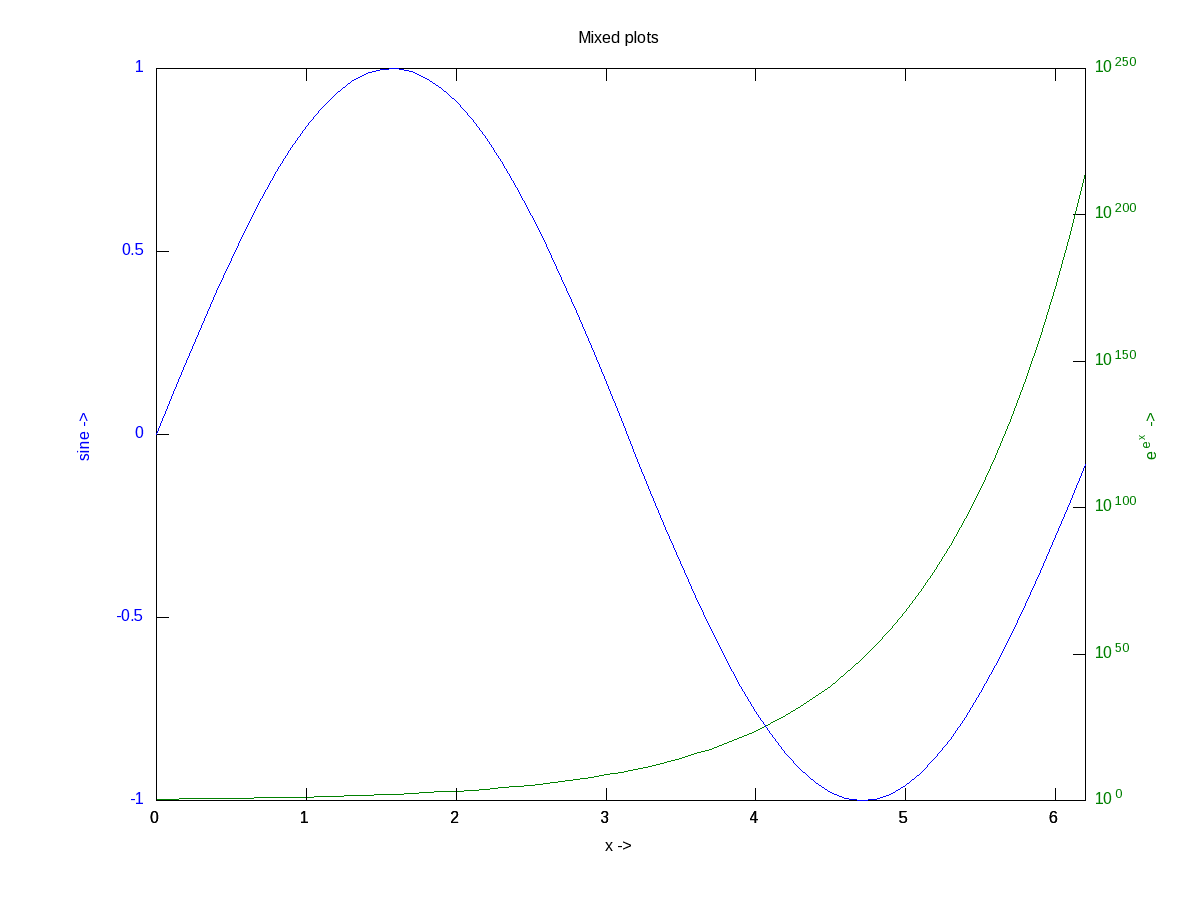
Figure 16: Mixed plots with semi log axis

Figure 16: Mixed plots with semi log axis

3D Visualization

And finally, let’s do some 3-D plotting. plot3() is the simplest octave function to do a simple 3-D drawing, taking the set of (x, y, z) points. Here’s the sample code to draw the dwindling sinusoidal curve shown in Figure 17:

octave:1> x = -10:0.1:10;
octave:2> y = 10:-0.1:-10;
octave:3> z = x .* sin(x - y); 
octave:4> plot3(x, y, z, "-", "LineWidth", 4); 
octave:5> xlabel("x ->");
octave:6> ylabel("y ->");
octave:7> zlabel("z ->");
octave:8> title("Dwindling sinusoidal");
octave:9> grid("on");
octave:10>
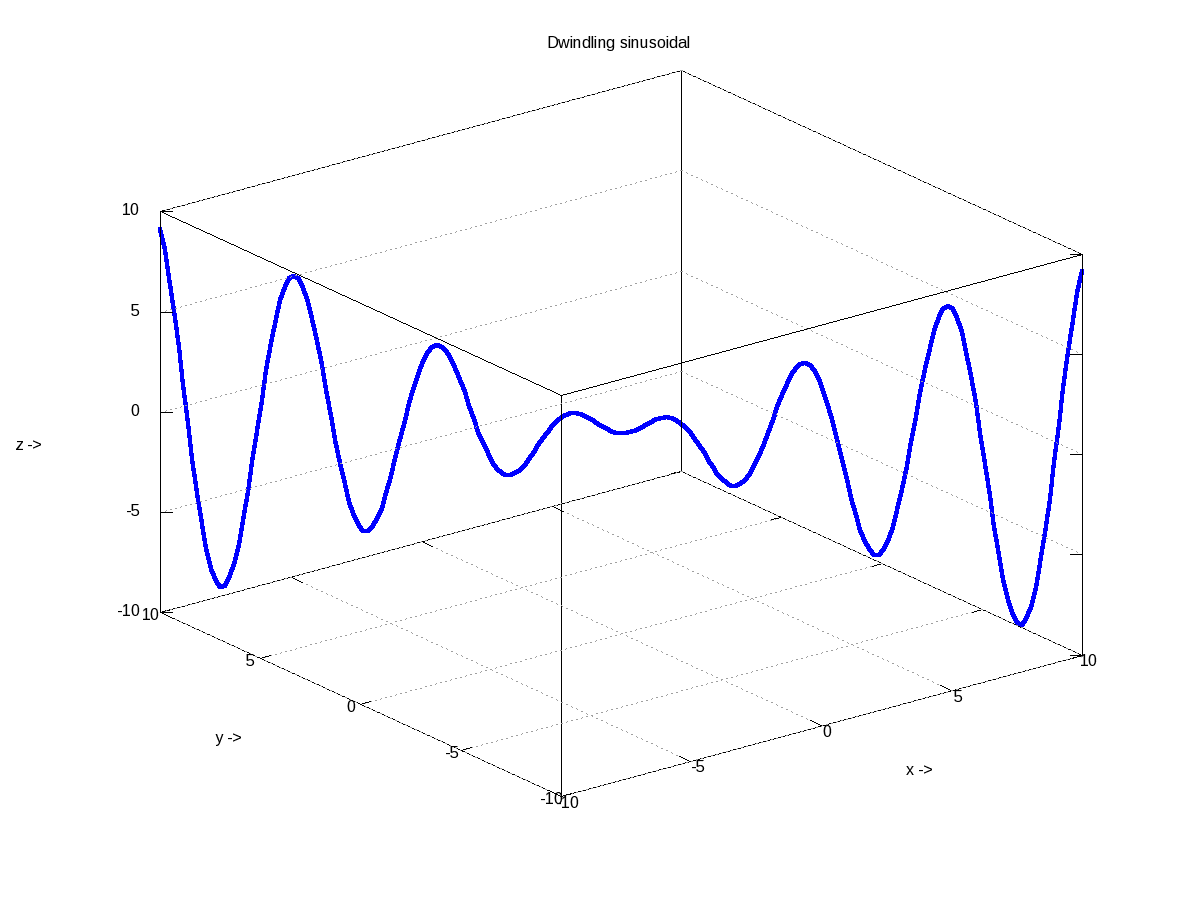
Figure 17: 3-D plot of a dwindling sinusoidal

Figure 17: 3-D plot of a dwindling sinusoidal

In case, we want to plot the values of a 2-D matrix against its indices (x, y), it could be done using mesh(), one of the many other 3-D plotting functions. Figure 18 shows the same, created using the following code:

octave:1> x = 0:0.1:2*pi;
octave:2> y = 0:0.1:2*pi;
octave:3> z = sin(x)' * sin(y);
octave:4> mesh(x, y, z); 
octave:5> xlabel("x ->");
octave:6> ylabel("y ->");
octave:7> zlabel("z ->");
octave:8> title("3-D waves");
octave:9>
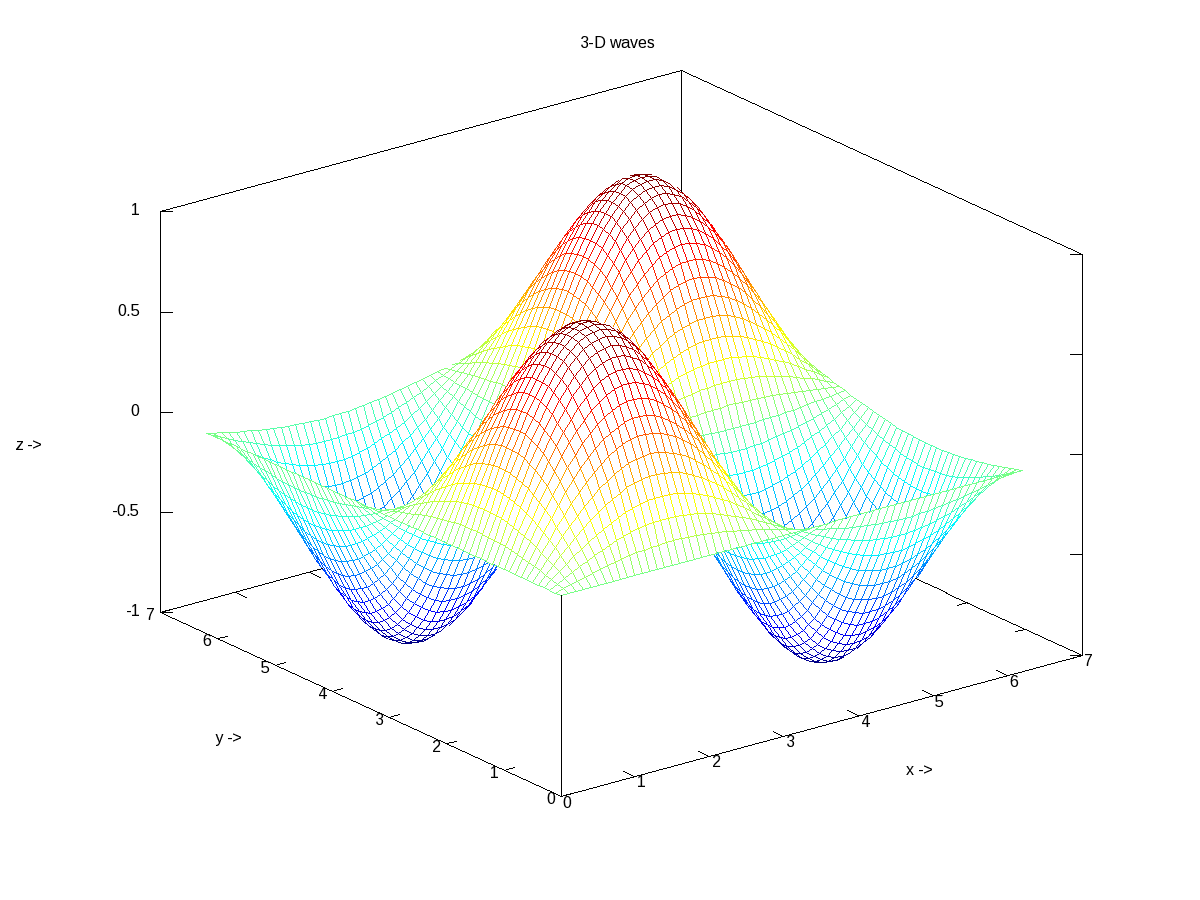
Figure 18: 3-D waves

Figure 18: 3-D waves

What’s next?

Hope you enjoyed the colours of drawing. Next, we would look into octave from a statisticians perspective.
Thirteenth Article >>

   Send article as PDF   

USB Drivers in Linux

This eleventh article, which is part of the series on Linux device drivers, gets you started with writing your first USB driver in Linux.

<< Tenth Article

Pugs’ pen drive was the device, Shweta was playing with, when both of them sat down to explore the world of USB drivers in Linux. The fastest way to get hang of one, the usual Pugs’ way, was to pick up a USB device and write a driver for it to experiment with. So, they chose pen drive aka USB stick, available at hand. It was JetFlash from Transcend with vendor ID 0x058f and product ID 0x6387.

USB device detection in Linux

Whether a driver of a USB device is there or not on a Linux system, a valid USB device would always get detected at the hardware and kernel spaces of a USB-enabled Linux system. A valid USB device is a device designed and detected as per USB protocol specifications. Hardware space detection is done by the USB host controller – typically a native bus device, e.g. a PCI device on x86 systems. The corresponding host controller driver would pick and translate the low-level physical layer information into higher level USB protocol specific information. The USB protocol formatted information about the USB device is then populated into the generic USB core layer (usbcore driver) in the kernel space, thus enabling the detection of a USB device in the kernel space, even without having its specific driver.

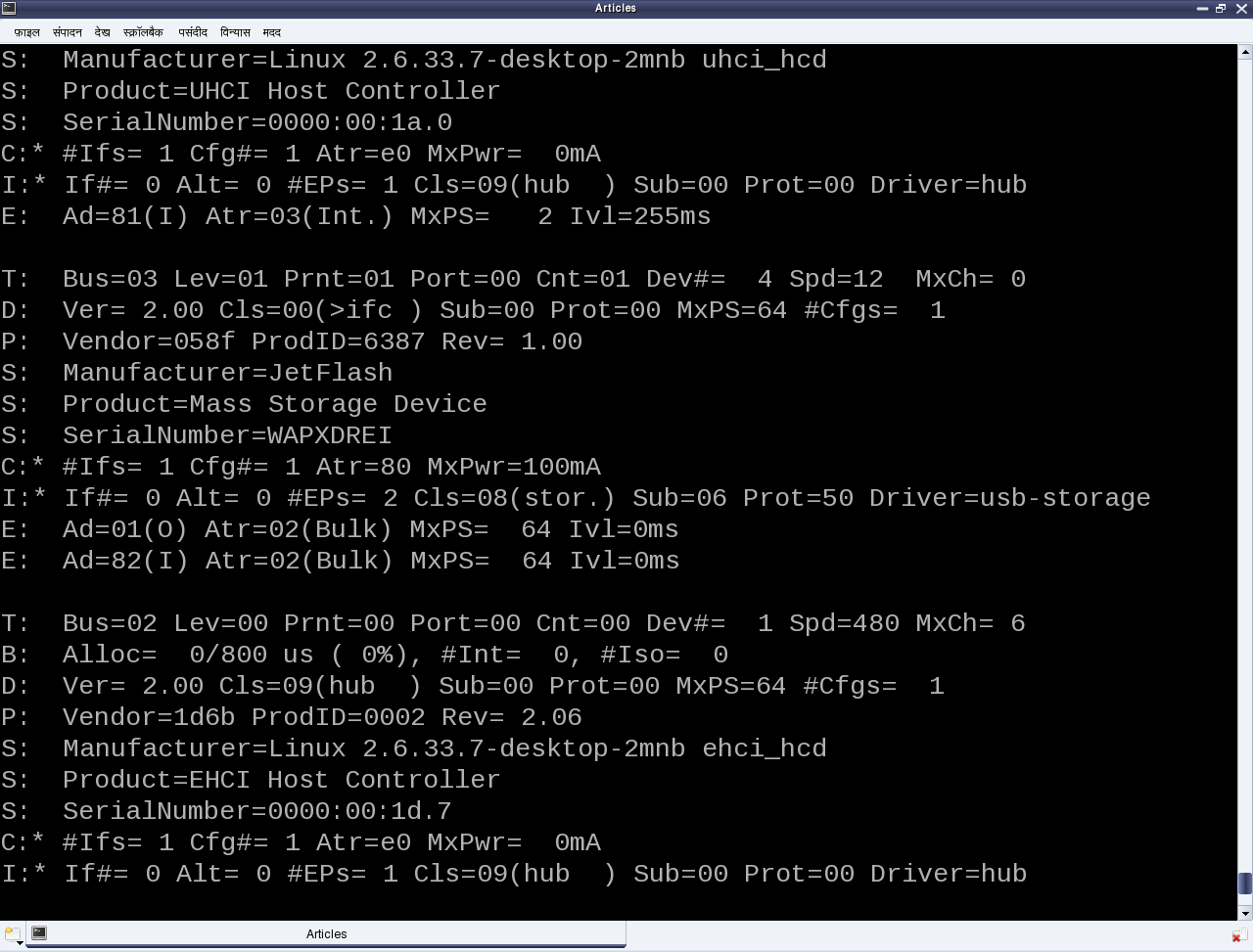
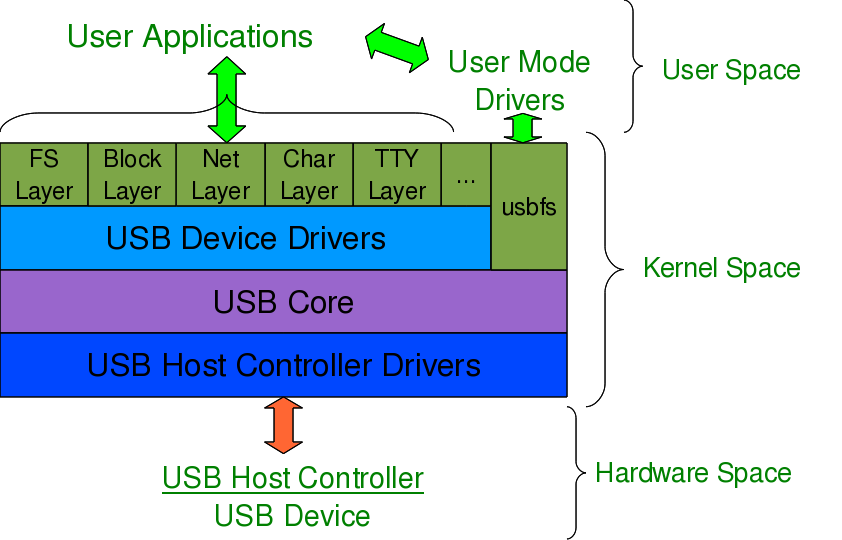
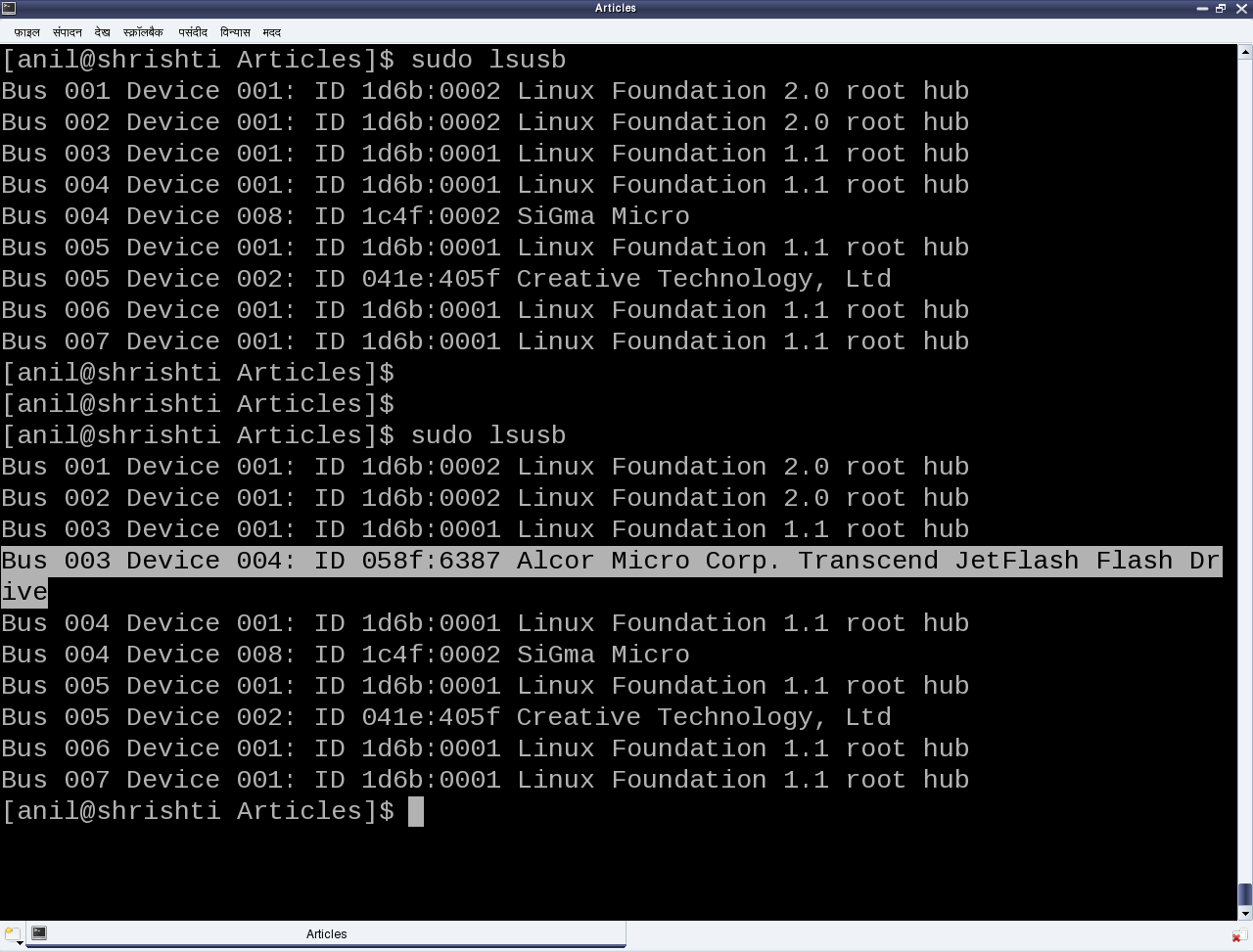
After this, it is up to the various drivers, interfaces, and applications (which are dependent on the various Linux distributions), to have the user space view of the detected devices. Figure 17 shows a top to bottom view of USB subsystem in Linux. A basic listing of all detected USB devices can be obtained using the lsusb command, as root. Figure 18 shows the same, without and with the pen drive being inserted into the system. A -v option to lsusb provides detailed information. In many Linux distributions like Mandriva, Fedora, … usbfs driver is loaded as part of the default configuration. This enables the detected USB device details to be viewed in a more techno-friendly way through the /proc window using cat /proc/bus/usb/devices. Figure 19 shows a typical snippet of the same, clipped around the pen drive specific section. The complete listing basically contains such sections, each for one of the valid USB devices detected on the Linux system.

Figure 17: USB subsystem in Linux

Figure 17: USB subsystem in Linux

Figure 18: Output of lsusb

Figure 18: Output of lsusb

Figure 19: USB's proc window snippet

Figure 19: USB’s proc window snippet

Decoding a USB device section

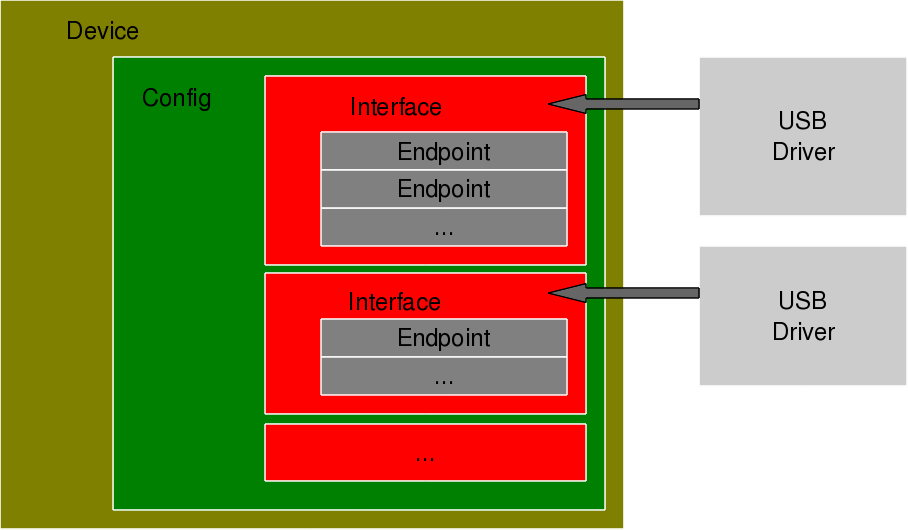
To further decode these sections, a valid USB device needs to be understood first. All valid USB devices contain one or more configurations. A configuration of a USB device is like a profile, where the default one is the commonly used one. As such, Linux supports only one configuration per device – the default one. For every configuration, the device may have one or more interfaces. An interface corresponds to the functionality provided by the device. There would be as many interfaces as the number of independent functionalities provided by the device. So, say an MFD (multi-function device) USB printer can do printing, scanning, and faxing, then it most likely would have at least three interfaces – one for each of the functionalities. So, unlike other device drivers, a USB device driver is typically associated/written per interface, rather than the device as a whole – meaning one USB device may have multiple device drivers. Though definitely one interface can have a maximum of one driver only.

Moreover, it is okay and common to have a single USB device driver for all the interfaces of a USB device. The “Driver=…” entry in the proc window output (Figure 19) shows the interface is to driver mapping – a “(none)” indicating no associated driver. For every interface, there would be one or more end points. An endpoint is like a pipe for transferring information either into or from the interface of the device, depending on the functionality. Depending on the type of information, the endpoints have four types:

  • Control
  • Interrupt
  • Bulk
  • Isochronous

As per USB protocol specification, all valid USB devices have an implicit special control endpoint zero, the only bi-directional endpoint. Figure 20 shows the complete pictorial representation of a valid USB device, based on the above explanation.

Coming back to the USB device sections (Figure 19), the first letter on each line represents the various parts of the USB device specification just explained. For example, D for device, C for configuration, I for interface, E for endpoint, etc. Details about them and various others are available under the kernel source Documentation/usb/proc_usb_info.txt

Figure 20: USB device overview

Figure 20: USB device overview

The USB pen drive driver registration

“Seems like there are so many things to know about the USB protocol to be able to write the first USB driver itself – device configuration, interfaces, transfer pipes, their four types, and so many other symbols like T, B, S, … under a USB device specification”, sighed Shweta. “Yes, but don’t you worry – all these can be talked in detail, later. Let’s do the first thing first – get our pen drive’s interface associated with our USB device driver (pen_register.ko)”, consoled Pugs. Like any other Linux device driver, here also we need the constructor and the destructor – basically the same driver template that has been used for all the drivers. Though the content would vary as this is a hardware protocol layer driver, i.e. a horizontal driver unlike a character driver, which was one of the vertical drivers, discussed so far. And the difference would be that instead of registering with & unregistering from VFS, here we would do that with the corresponding protocol layer – the USB core in this case; instead of providing a user space interface like a device file, it would get connected with the actual device in the hardware space. The USB core APIs for the same are as follows (prototyped in <linux/usb.h>):

int usb_register(struct usb_driver *driver);
void usb_deregister(struct usb_driver *);

As part of the usb_driver structure, the fields to be provided are the driver’s name, ID table for auto-detecting the particular device and the 2 callback functions to be invoked by USB core during hot-plugging and hot-removal of the device, respectively. Putting it all together, pen_register.c would look like:

#include <linux/module.h>
#include <linux/kernel.h>
#include <linux/usb.h>

static int pen_probe(struct usb_interface *interface, const struct usb_device_id *id)
{
	printk(KERN_INFO "Pen drive (%04X:%04X) plugged\n", id->idVendor,
								id->idProduct);
	return 0;
}

static void pen_disconnect(struct usb_interface *interface)
{
	printk(KERN_INFO "Pen drive removed\n");
}

static struct usb_device_id pen_table[] =
{
	{ USB_DEVICE(0x058F, 0x6387) },
	{} /* Terminating entry */
};
MODULE_DEVICE_TABLE (usb, pen_table);

static struct usb_driver pen_driver =
{
	.name = "pen_driver",
	.id_table = pen_table,
	.probe = pen_probe,
	.disconnect = pen_disconnect,
};

static int __init pen_init(void)
{
	return usb_register(&pen_driver);
}

static void __exit pen_exit(void)
{
	usb_deregister(&pen_driver);
}

module_init(pen_init);
module_exit(pen_exit);

MODULE_LICENSE("GPL");
MODULE_AUTHOR("Anil Kumar Pugalia <email@sarika-pugs.com>");
MODULE_DESCRIPTION("USB Pen Registration Driver");

Then, the usual steps for any Linux device driver may be repeated:

  • Build the driver (.ko file) by running make
  • Load the driver using insmod
  • List the loaded modules using lsmod
  • Unload the driver using rmmod

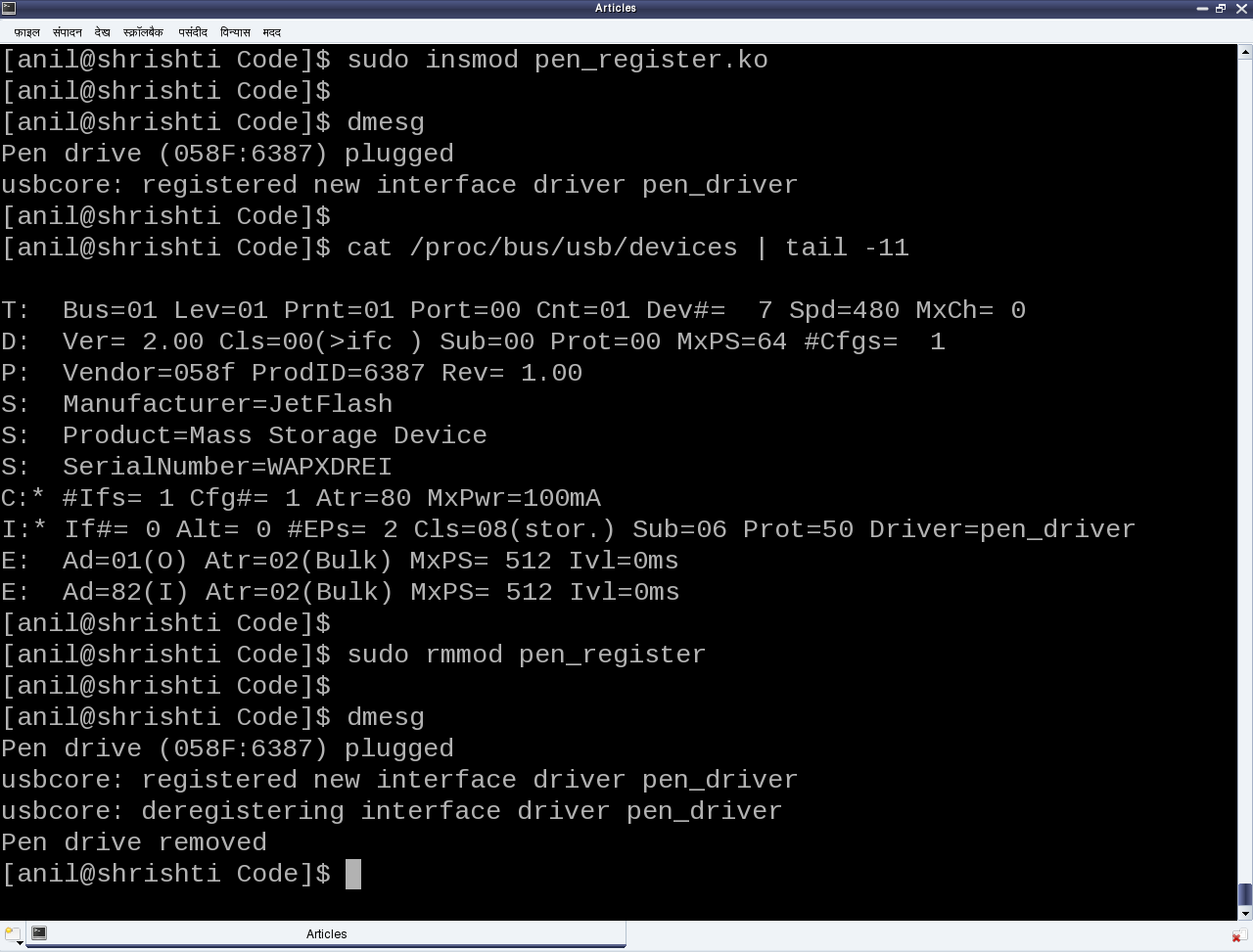
But surprisingly the results wouldn’t be as expected. Check for dmesg and the proc window to see the various logs and details. Not because USB driver is different from a character driver. But there’s a catch. Figure 19 shows that the pen drive has one interface (numbered 0), which is already associated with the usual usb-storage driver. Now, in order to get our driver associated with that interface, we need to unload the usb-storage driver (i.e. rmmod usb-storage) after plugging in the pen drive, and then load our driver. Once this sequence is followed, the results would be as expected. Figure 21 shows a glimpse of the possible logs and proc window snippet. Repeat hot-plugging in and hot-plugging out the pen drive to observe the probe and disconnect calls in action – but don’t forget unloading the usb-storage driver, every time you plug in the pen driver.

Figure 21: Pen driver in action

Figure 21: Pen driver in action

Summing up

“Finally!!! Something into action.”, relieved Shweta. “But seems like there are so many things around (like the device ID table, probe, disconnect, …), yet to be assimilated and understood to get a complete USB device driver, in place”, she continued. “Yes, you are right. Let’s take them one by one, with breaks”, replied Pugs taking a stretching break.

Twelfth Article >>

Notes

  1. Make sure that you replace the vendor id & device id in the above code examples by the ones of your pen drive.
  2. One may wonder, as how does the usb-storage get autoloaded. The answer lies in the module autoload rules written down in the file /lib/modules/<kernel_version>/modules.usbmap. If you are an expert, you may comment out the corresponding line, for it to not get autoloaded. And uncomment it back, once you are done with your experiments.
  3. In latest distros, you may not find the detailed description of the USB devices using cat /proc/bus/usb/devices, as the /proc/bus/usb/ itself has been deprecated. You can find the same detailed info using cat /sys/kernel/debug/usb/devices – though you may need root permissions for the same. Also, if you do not see any file under /sys/kernel/debug (even as root), then you may have to first mount the debug filesystem, as follows: mount -t debugfs none /sys/kernel/debug
   Send article as PDF   

Polynomial Curve Fitting & Interpolation

This eleventh article of the mathematical journey through open source, explains curve fitting & interpolation with polynomials in octave.

<< Tenth Article

In various fields of physics, chemistry, statistics, economics, … we very often come across something called curve fitting, and interpolation.

Given a set of data points from our observations, we would like to see what mathematical equation does they follow. So, we try to fit the best curve through those data points, called the curve fitting technique. Once we have the equation, the main advantage is that then we can find the values at the points, we haven’t observed by just substituting that value in the equation. One may think of this as interpolation. But this is not exactly interpolation. As in interpolation, we are restricted to finding unobserved values only between two observed points, using a pre-defined curve fit between those two points. With that we may not be able to get values outside our observation range. But the main reason for using that is when we are not interested or it is not meaningful or we are unable to fit a known form of curve in the overall data set, but still we want to get some approximations of values, in between the observed data points. Enough of gyaan, now let’s look into each one of those.

Curve Fitting

Let’s say for any system, we have the following data points:
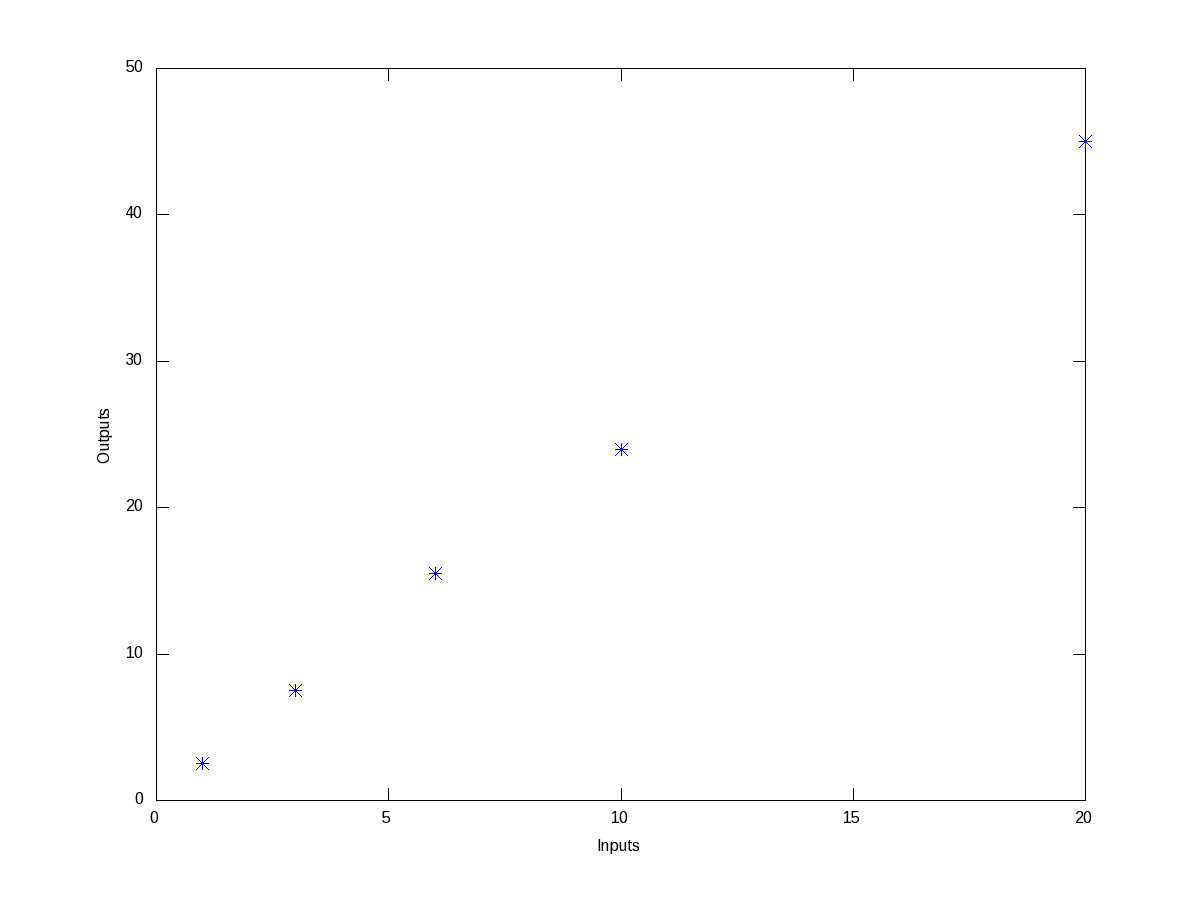
For the inputs of 1, 3, 6, 10, 20, we get the outputs as 2.5, 7.5, 15.5, 24, 45, respectively. Then, we would like to know as how is input is related to the output. So, to get a feel of the relation, we first plot this points on a x-y plane, say inputs as x and outputs as y. Figure 6 shows the same. And the octave code for that is as follows:

$ octave -qf
octave:1> x = [1 3 6 10 20];
octave:2> y = [2.5 7.5 15.5 24 45];
octave:3> plot(x, y, "*");
octave:4> xlabel("Inputs");
octave:5> ylabel("Outputs");
octave:6>
Figure 6: Plot of the data points

Figure 6: Plot of the data points

By observing the plot, the simplest fitting relation looks to be a straight line. So, let’s try fitting a linear polynomial, i.e. a first order polynomial, i.e. a straight line. Here’s the code in execution for it:

octave:1> x = [1 3 6 10 20];
octave:2> y = [2.5 7.5 15.5 24 45];
octave:3> p = polyfit(x, y, 1)
p =

   2.2212   1.1301

octave:4> polyout(p, "x");

2.2212*x^1 + 1.1301

octave:5> plot(x, y, "*", x, polyval(p, x), "-");
octave:6> xlabel("Inputs");
octave:7> ylabel("Outputs");
octave:8> legend("Data points", "Linear Fit");
octave:9>

polyfit() takes 3 arguments, the x values, the y values, and the order of the polynomial to fit – 1 for linear. It then returns the coefficients of the fitted polynomial p. polyout() displays the polynomial in more readable format. So, the fitted equation is y = 2.2212 * x + 1.1301. polyval() takes the polynomial p and the input values x, and calculates the output values y, as per the polynomial equation. And then we plot them, along with the earlier data points, on the same plot. Figure 7 shows the same, 2.2212 being the slope / gradient of the straight line, and 1.1301 being the intercept. Now, we notice that the straight line does not fit exactly, and there is some deviation from the observed points. polyfit() fits the polynomial with the minimum deviation for the order we request, but still there is a deviation, as that is the minimum possible. If you want to get the standard deviation for the particular fit, you just need to do the following:

octave:9> std_dev = sqrt(mean((y - polyval(p, x)).^2))
std_dev =  0.72637
octave:10>
Figure 7: Linear fit of data points

Figure 7: Linear fit of data points

And we see that it is a small value compared to our output values. But say we are not fully satisfied with this, we may like to try higher order polynomials, say of order 2, a quadratic, and observe the results from it. Here’s how one would do this:

octave:1> x = [1 3 6 10 20];
octave:2> y = [2.5 7.5 15.5 24 45];
octave:3> p = polyfit(x, y, 2)
p =

  -0.018639   2.623382  -0.051663

octave:4> polyout(p, "x");

-0.018639*x^2 + 2.6234*x^1 - 0.051663

octave:5> plot(x, y, "*", x, polyval(p, x), "-");
octave:6> xlabel("Inputs");
octave:7> ylabel("Outputs");
octave:8> legend("Data points", "Quadratic Fit");
octave:9> std_dev = sqrt(mean((y - polyval(p, x)).^2))
std_dev =  0.26873
octave:10>

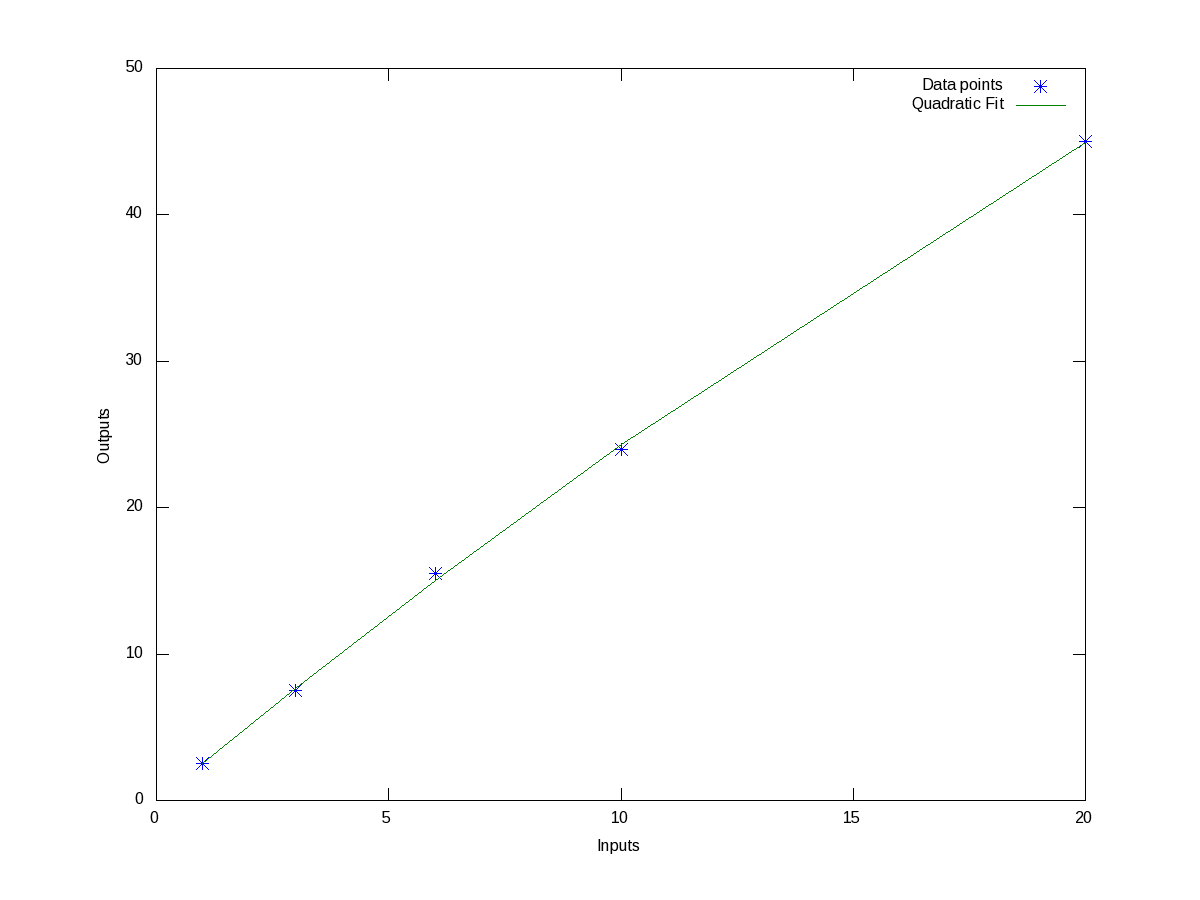
Figure 8 shows the data points and fitted quadratic curve. All the values above can be interpreted in the similar way as earlier. And we note that the standard deviation has come down further. In fact, as we increase the polynomial order further and further, we will definitely note that the standard deviation keeps on decreasing, till the order is same as number of data points – 1, after which it remains 0. But, we may not like to do this, as our observed data points are typically not perfect, and we are typically not interested in getting the standard deviation zero but for a fit more appropriate to reflect the relation between the system’s input and output.

Figure 8: Quadratic fit of data points

Figure 8: Quadratic fit of data points

Interpolation

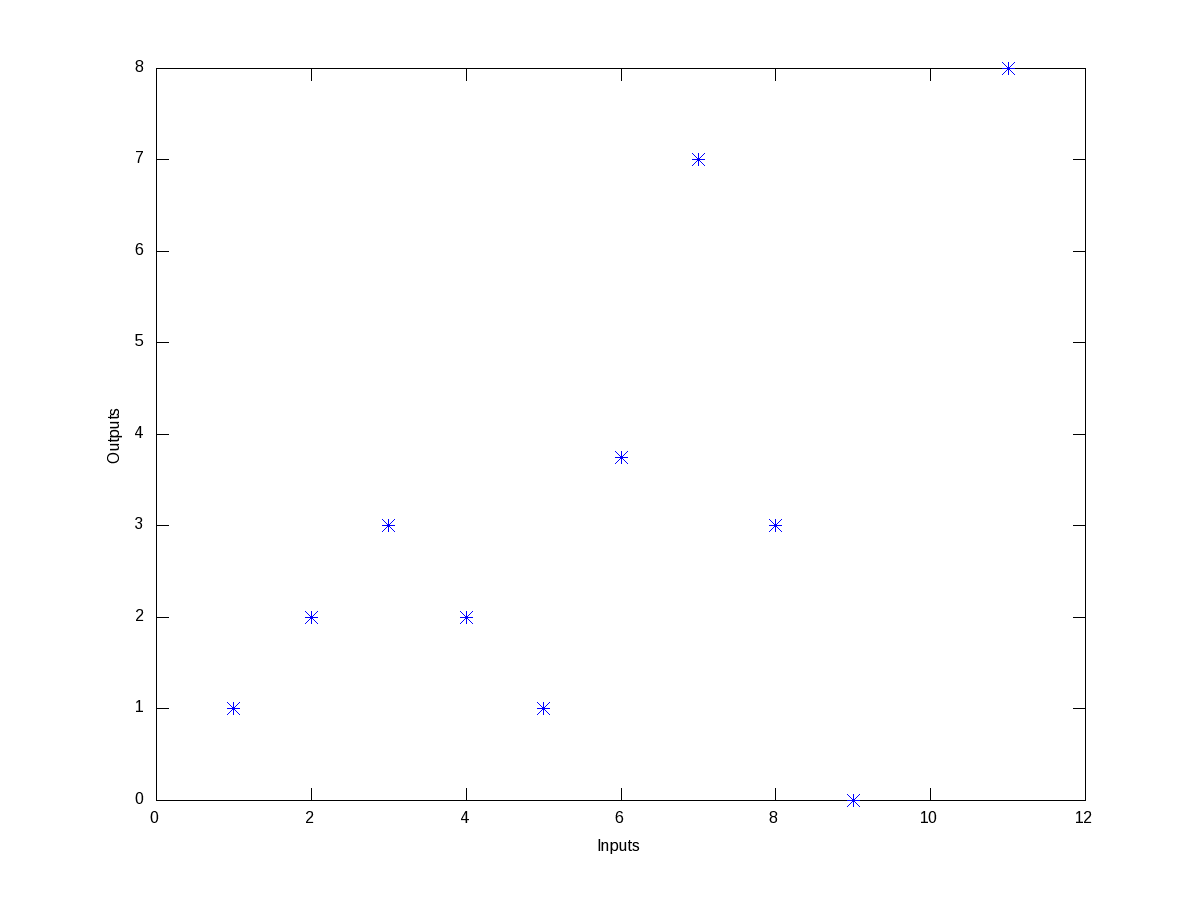
Now, say we have the following wierd data points, listed as (x, y) pairs: (1, 1), (2, 2), (3, 3), (4, 2), (5, 1), (6, 3.75), (7, 7), (8, 3), (9, 0), (11, 8). Figure 9 shows, how wierd they look like.

Figure 9: Wierd data points

Figure 9: Wierd data points

Trying to fit a polynomial, would be quite meaningless. But still they seem to have some correlation in between smaller ranges of input, say between 1 and 3, 3 and 5, 5 and 7, and so on. So, this is best suited for us to do interpolation for finding the values in between, say at 1.5, 3.8, 10, … Now interpolation is all about curve fitting between two neighbouring data points and then calculating the value at any intermediate point. So, the typical varieties of techniques used for this “piece-wise curve fitting” are:

  • nearest: Return the nearest data point (actually no curve fitting)
  • linear: Linear/Straight line fitting between the two neighbouring data points
  • pchip: Piece-wise cubic (order 3) hermite polynomial fitting
  • cubic: Cubic (order 3) polynomial fitted between four nearest neighbouring data points
  • spline: Cubic (order 3) spline fitting with smooth first and second derivatives throughout the curve

All these may look little jargonish – so don’t worry about that. Let’s just try out some examples to drive the point home. Here’s the code to show the nearest & linear interpolation for the above data:

octave:1> x = [1 2 3 4 5 6 7 8 9 11];
octave:2> y = [1 2 3 2 1 3.75 7 3 0 8];
octave:3> xi = 1:0.1:11;
octave:4> y_n = interp1(x, y, xi, "nearest");
octave:5> y_l = interp1(x, y, xi, "linear");
octave:6> plot(x, y, "*", xi, y_n, "-", xi, y_l, "-");
octave:7> xlabel("Inputs");
octave:8> ylabel("Outputs");
octave:9> legend("Data points", "Nearest", "Linear");
octave:10>

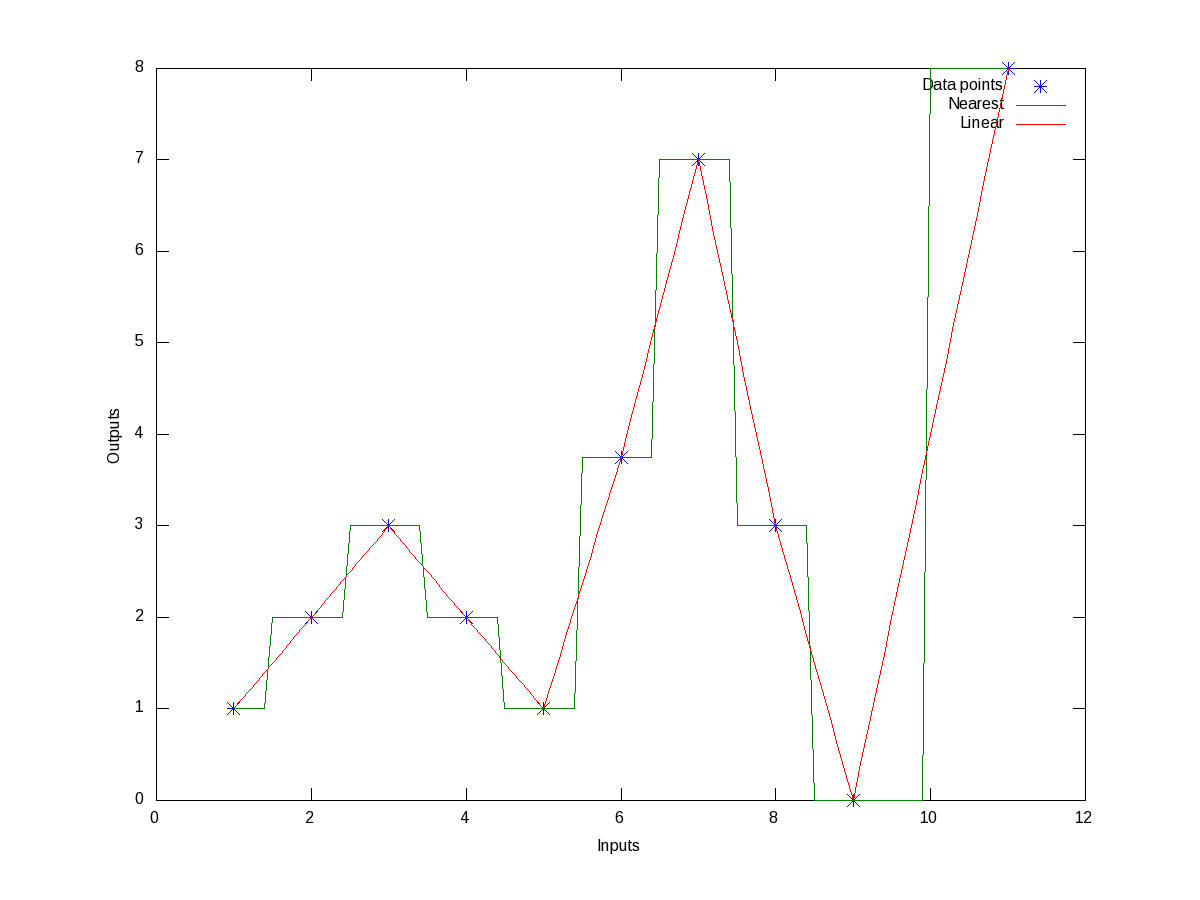
Figure 10 shows the same.

Figure 10: Nearest and linear interpolations of the data points

Figure 10: Nearest and linear interpolations of the data points

Now, if we want to get the interpolated values say at the points 1.5, 3.8, 10, instead of giving all the intermediate points xi in the above code, we may just give these 3 – that’s all. Here goes the code in execution for the that:

octave:1> x = [1 2 3 4 5 6 7 8 9 11];
octave:2> y = [1 2 3 2 1 3.75 7 3 0 8];
octave:3> our_x = [1.5 3.8 10];
octave:4> our_y_n = interp1(x, y, our_x, "nearest")
our_y_n =

   2   2   8

octave:5> our_y_l = interp1(x, y, our_x, "linear")
our_y_l =

   1.5000   2.2000   4.0000

octave:6>

Now, before closing on interpolation, just to give a feel of all of the interpolation techniques, here goes an example with the points on a sine curve:

octave:1> x = 0:2*pi;
octave:2> y = sin(x);
octave:3> xi = 0:0.1:2*pi;
octave:4> y_n = interp1(x, y, xi, "nearest");
octave:5> y_l = interp1(x, y, xi, "linear");
octave:6> y_p = interp1(x, y, xi, "pchip");
octave:7> y_c = interp1(x, y, xi, "cubic");
octave:8> y_s = interp1(x, y, xi, "spline");
octave:9> plot(x, y, "*", xi, y_n, "-", xi, y_l, "-", xi, y_p, "-", xi, y_c, "-",
                                                                      xi, y_s, "-");
octave:10> xlabel("x ->");
octave:11> ylabel("y ->");
octave:12> legend("Data points", "Nearest", "Linear", "Pchip", "Cubic", "Spline");
octave:13> print("-dpng", "all_types_of_interpolations.png");
octave:14>

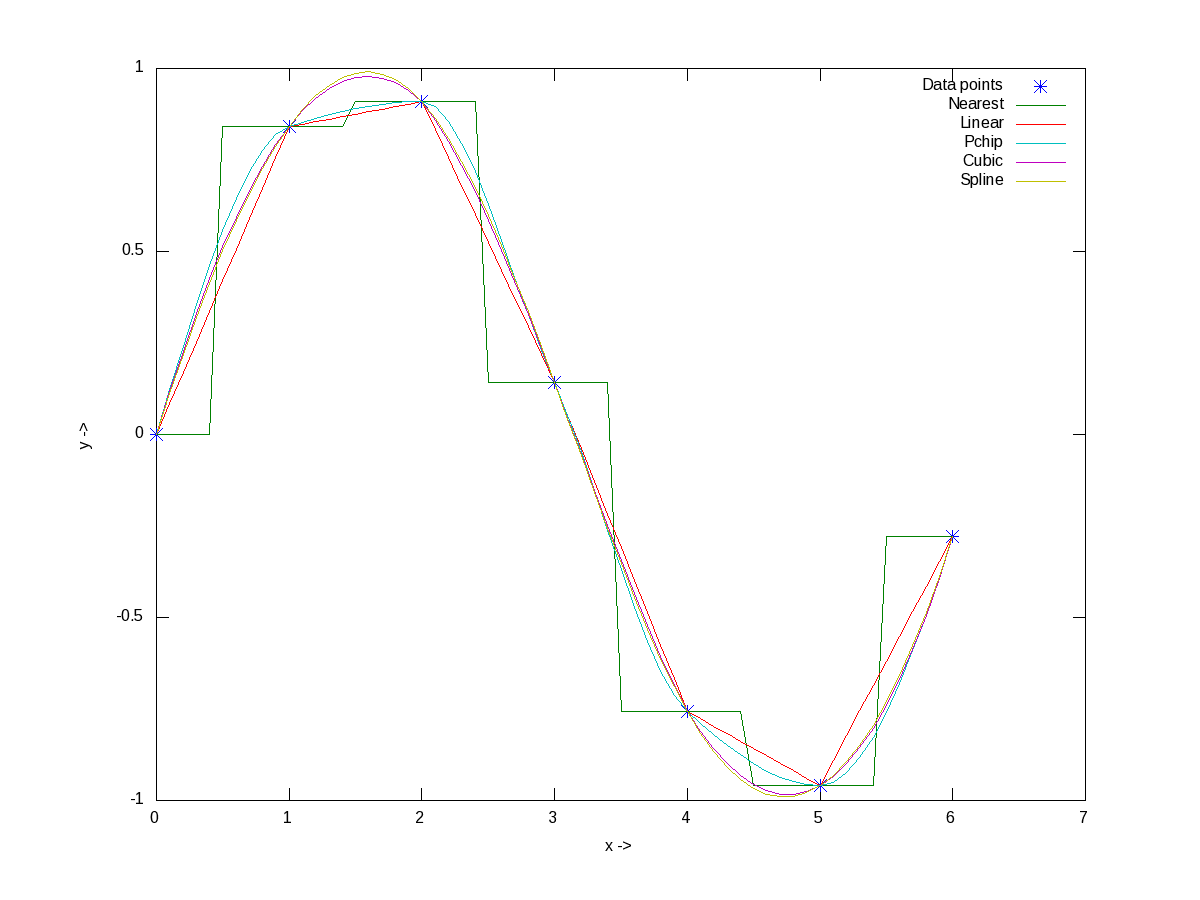
Figure 11 shows the visualization of the same for your eyes.

Figure 11: All types of interpolations for sinusoidal points

Figure 11: All types of interpolations for sinusoidal points

What’s next?

With today’s curve fitting & interpolation walk through, we have used some basic 2-D plotting techniques. But there are many more features and techniques to plotting, like marking our plots, visualizing 3-D stuff, etc. Next, we’ll look into that.

Twelfth Article >>

   Send article as PDF   

Kernel Space Debuggers in Linux

This tenth article, which is part of the series on Linux device drivers, talks about kernel space debugging in Linux.

<< Ninth Article

Shweta was back from hospital and relaxing in the library by reading up various books. Since the time she has known the ioctl way of debugging, she has been impatient to know more about debugging in kernel space. The basic curiosity coming from the fact that how and where would one run the kernel space debugger, if there is any. Contrast this with application/user space debugging, where we have the OS running underneath, and a shell or a GUI over it to run the debugger, say for example, the GNU debugger (gdb), the data display debugger (ddd). And viola, she came across this interesting kernel space debugging mechanism using kgdb, provided as part of the kernel itself, since kernel 2.6.26

Debugger challenge in kernel space

As we need some interface to be up, to run a debugger to debug anything, a debugger for debugging the kernel, could be visualized in 2 possible ways:

  1. Put the debugger into the kernel itself. And then the debugger runs from within, accessible through the usual monitor or console. An example of it is kdb. Until kernel 2.6.35, it was not official, meaning its source code was needed to be downloaded as 2 set of patches (one architecture dependent and one architecture independent) from ftp://oss.sgi.com/projects/kdb/download/ and then to be patched with the kernel source – though since kernel 2.6.35, majority of it is part of the kernel source’s official release. In either case, the kdb support needs to be enabled in the kernel source and then the kernel is to be compiled, installed and booted with. The boot screen itself would give the kdb debugging interface.
  2. Put a minimal debugging server into the kernel; a debugger client would then connect to it from a remote host system’s user space over some interface, say serial or ethernet. An example for that is kgdb – the kernel’s gdb server, to be used with gdb (client) from a remote system over either serial or ethernet. Since kernel 2.6.26, its serial interface part has been merged with kernel source’s official release. Though, if interested in its network interface part, it would still need to be patched with one of the releases from http://sourceforge.net/projects/kgdb/. In either case, the next step would be to enable kgdb support in the kernel source and then the kernel is to be compiled, installed and booted with – though this time to be connected with a remote debugger client.

Please note that in both the above cases, the complete kernel source for the kernel to be debugged is needed, unlike in case of building modules, where just headers are sufficient. Here is how to play around with kgdb over serial interface.

Setting up the Linux kernel with kgdb

Pre-requisite: Either kernel source package for the running kernel is installed on your system, or a corresponding kernel source release has been downloaded from http://kernel.org.

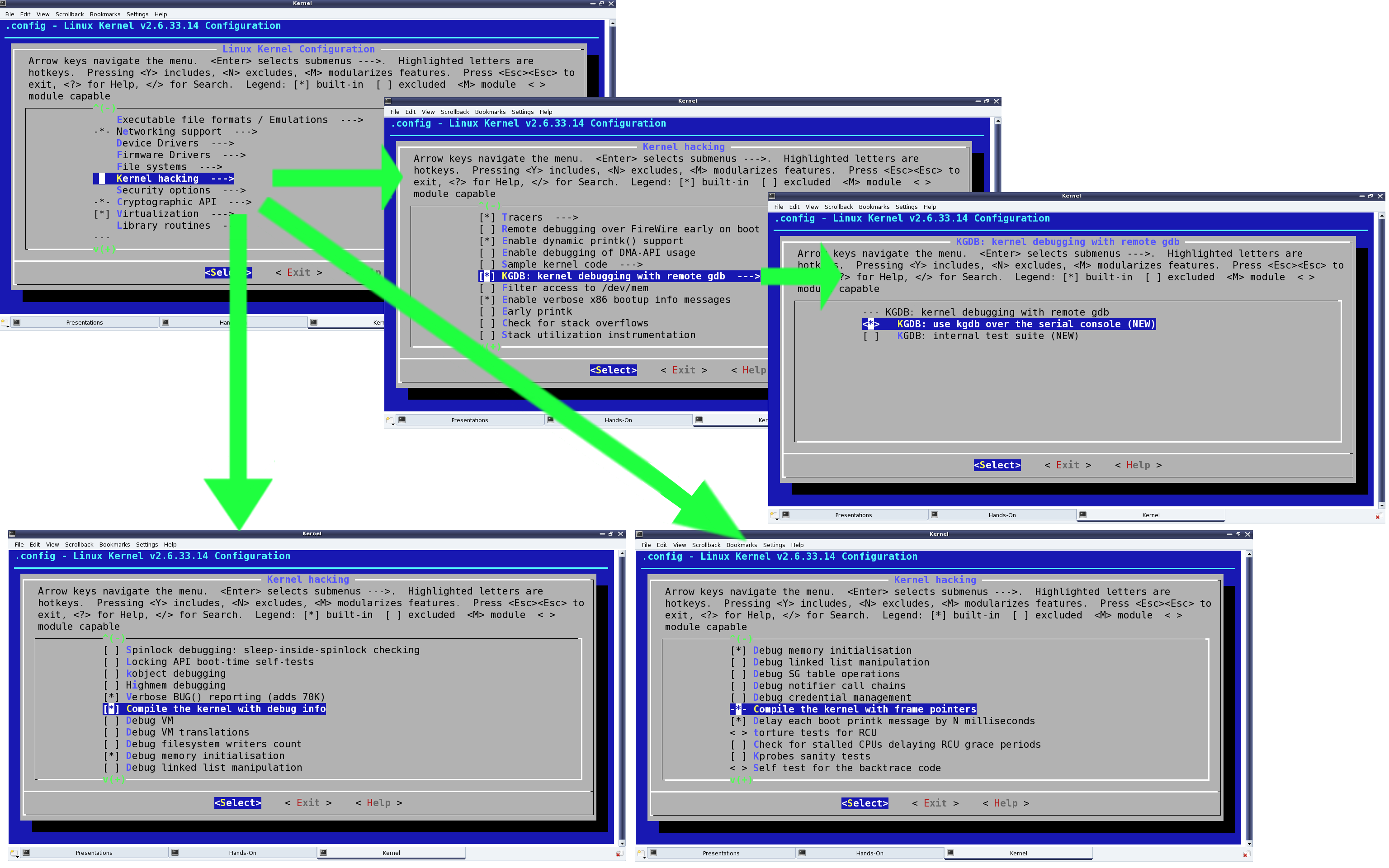
First of all, the kernel to be debugged need to have kgdb enabled and built into it. To achieve that, the kernel source has to be configured with CONFIG_KGDB=y. Additionally, for kgdb over serial, CONFIG_KGDB_SERIAL_CONSOLE=y needs to be configured. And CONFIG_DEBUG_INFO is preferred for symbolic data to be built into kernel for making debugging with gdb more meaningful. CONFIG_FRAME_POINTER=y enables frame pointers in the kernel allowing gdb to construct more accurate stack back traces. All these options are available under “Kernel hacking” in the menu obtained by issuing the following commands in the kernel source directory (preferably as root or using sudo):

$ make mrproper # To clean up properly
$ make oldconfig # Configure the kernel same as the current running one
$ make menuconfig # Start the ncurses based menu for further configuration

See the highlighted selections in Figure 15, for how and where would these options be:

  • “KGDB: kernel debugging with remote gdb” → CONFIG_KGDB
    • “KGDB: use kgdb over the serial console” → CONFIG_KGDB_SERIAL_CONSOLE
  • “Compile the kernel with debug info” → CONFIG_DEBUG_INFO
  • “Compile the kernel with frame pointers” → CONFIG_FRAME_POINTER
Figure 15: Configuring kernel with kgdb

Figure 15: Configuring kernel with kgdb

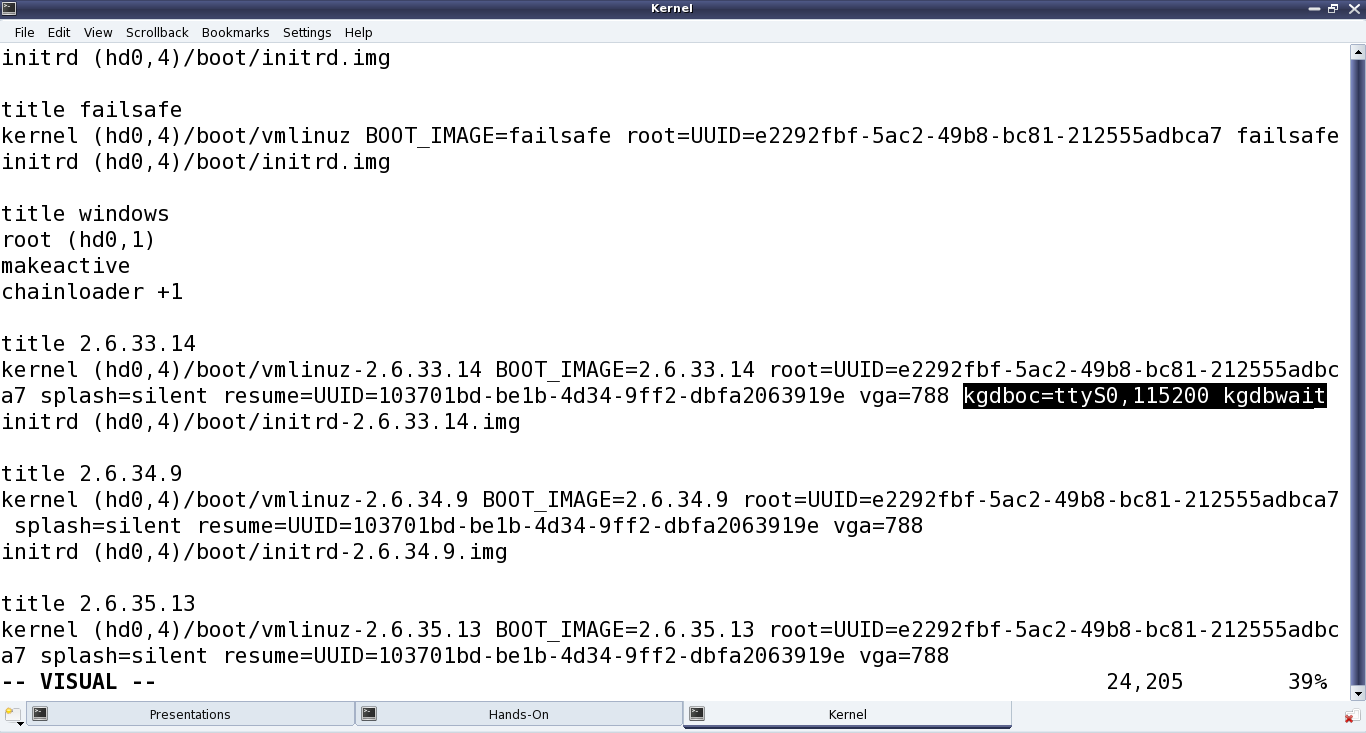
Once configured and saved, the kernel can be built by typing make in the kernel source directory. And then a make install is expected to install it, along with adding an entry for the installed kernel in the grub configuration file. Depending on the distribution, the grub configuration file may be /boot/grub/menu.lst, /etc/grub.cfg, or something similar. Once installed, the kgdb related kernel boot parameters, need to be added to this newly added entry.

Figure 16: grub configuration for kernel with kgdb

Figure 16: grub configuration for kernel with kgdb

Figure 16 highlights the kernel boot parameters added to the newly installed kernel, in the grub‘s configuration file.

kgdboc is for gdb connecting over console and the basic format is: kgdboc=<serial_device>,<baud_rate>
where:
<serial_device> is the serial device file on the system, which would run the kernel to be debugged, for the serial port to be used for debugging
<baud_rate> is the baud rate of the serial port to be used for debugging

kgdbwait enables the booting kernel to wait till a remote gdb (i.e. gdb on another system) connects to it, and this parameter should be passed only after kgdboc.

With this, the system is ready to reboot into this newly built and installed kernel. On reboot, at the grub‘s menu, select to boot from this new kernel, and then it will wait for gdb to connect with it from an another system over the serial port.

All the above snapshots have been with kernel source 2.6.33.14, downloaded from http://kernel.org. And the same should work for at the least any 2.6.3x release of kernel source. Also, the snapshots are captured for kgdb over serial device file /dev/ttyS0, i.e. the first serial port.

Setting up gdb on another system

Pre-requisite: Serial ports of the system to be debugged and the another system to run gdb from, should be connected using a null modem (i.e. a cross over serial) cable.

Here are the gdb commands to get the gdb from the other system connect to the waiting kernel. All these commands have to be given on the gdb prompt, after typing gdb on the shell.

Connecting over serial port /dev/ttyS0 (of the system running gdb) with baud rate 115200 bps:

$ gdb
...
(gdb) file vmlinux
(gdb) set remote interrupt-sequence Ctrl-C
(gdb) set remotebaud 115200
(gdb) target remote /dev/ttyS0
(gdb) continue

In the above commands, vmlinux is the kernel image built with kgdb enabled and needs to be copied into the directory on the system, from where gdb is being executed. Also, the serial device file and its baud rate has to be correctly given as per one’s system setup.

Debugging using gdb with kgdb

After this, it is all like debugging an application from gdb. One may stop execution using Ctrl+C, add break points using b[reak], step execution using s[tep] or n[ext], … – the usual gdb way. For details on how to use gdb, there are enough tutorials available online. In fact, if not comfortable with text-based gdb, the debugging could be made GUI-based, using any of the standard GUI tools over gdb, for example, ddd, Eclipse, etc.

Summing up

By now, Shweta was all excited to try out the kernel space debugging experiment using kgdb. And as she needed two systems to try it out, she decided to go to the Linux device drivers lab. There, she set up the system to be debugged, with the kgdb enabled kernel, and connected it with an another system using a null modem cable. Then on the second system, she executed gdb to remotely connect with and step through the kernel on the first system.

Eleventh Article >>

Notes

  1. Parameter for using kgdb over ethernet is kgdboe. It has the following format: kgdboe=[<this_udp_port>]@<this_ip>/[this_dev],[<remote_udp_port>]@<remote_ip>/[<remote_mac_addr>]

where:
<this_udp_port> is optional and defaults to 6443,
<this_ip> is IP address of the system, which would run the kernel to be debugged,
<this_dev> is optional and defaults to eth0,
<remote_udp_port> is optional and defaults to 6442,
<remote_ip> is IP address of the system, from which gdb would be connecting from,
<remote_mac_addr> is optional and defaults to broadcast.

Here are the gdb commands for connecting to kgdb over network port 6443 to IP address 192.168.1.2:

$ gdb
...
(gdb) file vmlinux
(gdb) set remotebreak 0
(gdb) target remote udp:192.168.1.2:6443
(gdb) continue
   Send article as PDF   

Polynomial Power of Octave

This tenth article of the mathematical journey through open source, explains advanced polynomial mathematics in octave.

<< Ninth Article

Roots of i

Let’s start with the solution to our previous brain teaser of finding the square and cube roots of the imaginary number i, which boils down to finding all the roots of the equations x2 = i and x3 = i, respectively. In other words, roots of the polynomials x2 – i and x3 – i, respectively, as follows:

$ octave -qf
octave:1> roots([1 0 -i])
ans =

   0.70711 + 0.70711i
  -0.70711 - 0.70711i

octave:2> roots([1 0 0 -i])
ans =

  -0.86603 + 0.50000i
  -0.00000 - 1.00000i
   0.86603 + 0.50000i

octave:3>

Displaying Polynomial

Before we start exploring polynomials further, here’s a couple of basic octave functions to visualize the polynomials. polyout() displays a polynomial in our usual known format. polyreduce() removes the redundant leading zero coefficients. Check out the following:

$ octave -qf
octave:1> p = [ 0 0 5 3 -9 4 6 ];
octave:2> polyout(p, "x");
0*x^6 + 0*x^5 + 5*x^4 + 3*x^3 - 9*x^2 + 4*x^1 + 6
octave:3> polyreduce(p)
ans =

   5   3  -9   4   6

octave:4> polyout(polyreduce(p), "x");
5*x^4 + 3*x^3 - 9*x^2 + 4*x^1 + 6
octave:5>

Polynomial Arithmetic

As octave represents polynomial as vectors, their addition and subtraction are vector addition and subtraction, respectively. However, the polynomial vectors may be of different length. Hence, they need to be made of same length before addition or subtraction. So, let’s write functions to do the complete operations:

function [ q1 q2 ] = equalize(p1, p2)
# Assuming p1 & p2 to be row vectors
    m = max(length(p1), length(p2));
    q1 = [ zeros(1, m - length(p1)) p1 ];
    q2 = [ zeros(1, m - length(p2)) p2 ];
endfunction

function p = polyadd(p1, p2)
    [ q1 q2 ] = equalize(p1, p2);
    p = polyreduce(q1 + q2);
endfunction

function p = polysub(p1, p2)
    [ q1 q2 ] = equalize(p1, p2);
    p = polyreduce(q1 - q2);
endfunction

Assuming the above code is put in the file polynomials.oct, the same can be used as follows:

$ octave -qf
octave:1> source("polynomials.oct");
octave:2> polyout(p1 = [ 1 2 1 ], "x");
1*x^2 + 2*x^1 + 1
octave:3> polyout(p2 = [ 1 -1 ], "x");
1*x^1 - 1
octave:4> polyout(polyadd(p1, p2), "x");
1*x^2 + 3*x^1 + 0
octave:5> polyout(polysub(p1, p2), "x");
1*x^2 + 1*x^1 + 2
octave:6>

Interestingly, octave already have the functions for multiplication and division of polynomials, namely conv() and deconv(), respectively. Here’s a demonstration:

$ octave -qf
octave:1> polyout(p1 = [ 1 2 1 ], "x");
1*x^2 + 2*x^1 + 1
octave:2> polyout(p2 = [ 1 -1 ], "x");
1*x^1 - 1
octave:3> polyout(conv(p1, p2), "x");
1*x^3 + 1*x^2 - 1*x^1 - 1
octave:4> polyout(deconv(p1, p2), "x");
1*x^1 + 3
octave:5> [ q r ] = deconv(p1, p2)
q =

   1   3

r =

   0   0   4

octave:6>

Polynomial Differentiation and Integration

Octave also provides functions for differentiation and integration of polynomials, namely polyder() and polyint(). Here goes an example of differentiation and definite integral using the same:

$ octave -qf
octave:1> polyout(p = [ 1 2 1 ], "x");
1*x^2 + 2*x^1 + 1
octave:2> polyout(polyder(p), "x");
2*x^1 + 2
octave:3> polyout(polyint(p), "x");
0.33333*x^3 + 1*x^2 + 1*x^1 + 0
octave:4> q = polyint(p);
octave:5> polyval(q, 3) - polyval(q, 0) # Definite integral of p from 0 to 3
ans =  21
octave:6>

What’s next?

Given a set of data points a common requirement in fields of physics, statistics, and many others is to fit a polynomial to it. Going further, we’ll explore the power of octave for the same.

Eleventh Article >>

   Send article as PDF   

I/O Control in Linux

This ninth article, which is part of the series on Linux device drivers, talks about the typical ioctl() implementation and usage in Linux.

<< Eighth Article

“Get me a laptop and tell me about the experiments on the x86-specific hardware interfacing conducted in yesterday’s Linux device drivers’ laboratory session, and also about what’s planned for the next session”, cried Shweta, exasperated at being confined to bed and not being able to attend the classes. “Calm down!!! Don’t worry about that. We’ll help you make up for your classes. But first tell us what happened to you, so suddenly”, asked one of her friends, who had come to visit her in the hospital. “It’s all the fault of those chaats, I had in Rohan’s birthday party. I had such a painful food poisoning that led me here”, blamed Shweta. “How are you feeling now?”, asked Rohan sheepishly. “I’ll be all fine – just tell me all about the fun with hardware, you guys had. I had been waiting to attend that session and all this had to happen, right then”.

Rohan sat down besides Shweta and summarized the session to her, hoping to soothe her. That excited her more and she starting forcing them to tell her about the upcoming sessions, as well. They knew that those would be to do something with hardware, but were unaware of the details. Meanwhile, the doctor comes in and requests everybody to wait outside. That was an opportunity to plan and prepare. And they decided to talk about the most common hardware controlling operation: the ioctl(). Here is how it went.

Introducing an ioctl()

Input-output control (ioctl, in short) is a common operation or system call available with most of the driver categories. It is a “one bill fits all” kind of system call. If there is no other system call, which meets the requirement, then definitely ioctl() is the one to use. Practical examples include volume control for an audio device, display configuration for a video device, reading device registers, … – basically anything to do with any device input / output, or for that matter any device specific operations. In fact, it is even more versatile – need not be tied to any device specific things but any kind of operation. An example includes debugging a driver, say by querying of driver data structures.

Question is – how could all these variety be achieved by a single function prototype. The trick is using its two key parameters: the command and the command’s argument. The command is just some number, representing some operation, defined as per the requirement. The argument is the corresponding parameter for the operation. And then the ioctl() function implementation does a “switch … case” over the command implementing the corresponding functionalities. The following had been its prototype in Linux kernel, for quite some time:

int ioctl(struct inode *i, struct file *f, unsigned int cmd, unsigned long arg);

Though, recently from kernel 2.6.35, it has changed to the following:

long ioctl(struct file *f, unsigned int cmd, unsigned long arg);

If there is a need for more arguments, all of them are put in a structure and a pointer to the structure becomes the ‘one’ command argument. Whether integer or pointer, the argument is taken up as a long integer in kernel space and accordingly type cast and processed.

ioctl() is typically implemented as part of the corresponding driver and then an appropriate function pointer initialized with it, exactly as with other system calls open(), read(), … For example, in character drivers, it is the ioctl or unlocked_ioctl (since kernel 2.6.35) function pointer field in the struct file_operations, which is to be initialized.

Again like other system calls, it can be equivalently invoked from the user space using the ioctl() system call, prototyped in <sys/ioctl.h> as:

int ioctl(int fd, int cmd, ...);

Here, cmd is the same as implemented in the driver’s ioctl() and the variable argument construct (…) is a hack to be able to pass any type of argument (though only one) to the driver’s ioctl(). Other parameters will be ignored.

Note that both the command and command argument type definitions need to be shared across the driver (in kernel space) and the application (in user space). So, these definitions are commonly put into header files for each space.

Querying the driver internal variables

To better understand the boring theory explained above, here’s the code set for the “debugging a driver” example mentioned above. This driver has 3 static global variables status, dignity, ego, which need to be queried and possibly operated from an application. query_ioctl.h defines the corresponding commands and command argument type. Listing follows:

#ifndef QUERY_IOCTL_H

#define QUERY_IOCTL_H

#include <linux/ioctl.h>

typedef struct
{
	int status, dignity, ego;
} query_arg_t;

#define QUERY_GET_VARIABLES _IOR('q', 1, query_arg_t *)
#define QUERY_CLR_VARIABLES _IO('q', 2)

#endif

Using these, the driver’s ioctl() implementation in query_ioctl.c would be:

static int status = 1, dignity = 3, ego = 5;

#if (LINUX_VERSION_CODE < KERNEL_VERSION(2,6,35))
static int my_ioctl(struct inode *i, struct file *f, unsigned int cmd,
	unsigned long arg)
#else
static long my_ioctl(struct file *f, unsigned int cmd, unsigned long arg)
#endif
{
	query_arg_t q;

	switch (cmd)
	{
		case QUERY_GET_VARIABLES:
			q.status = status;
			q.dignity = dignity;
			q.ego = ego;
			if (copy_to_user((query_arg_t *)arg, &q,
				sizeof(query_arg_t)))
			{
				return -EACCES;
			}
			break;
		case QUERY_CLR_VARIABLES:
			status = 0;
			dignity = 0;
			ego = 0;
			break;
		default:
			return -EINVAL;
	}

	return 0;
}

And finally the corresponding invocation functions from the application query_app.c would be as follows:

#include <stdio.h>
#include <sys/ioctl.h>

#include "query_ioctl.h"

void get_vars(int fd)
{
	query_arg_t q;

	if (ioctl(fd, QUERY_GET_VARIABLES, &q) == -1)
	{
		perror("query_apps ioctl get");
	}
	else
	{
		printf("Status : %d\n", q.status);
		printf("Dignity: %d\n", q.dignity);
		printf("Ego	: %d\n", q.ego);
	}
}
void clr_vars(int fd)
{
	if (ioctl(fd, QUERY_CLR_VARIABLES) == -1)
	{
		perror("query_apps ioctl clr");
	}
}

Complete code of the above mentioned three files is included in the folder QueryIoctl, where the required Makefile is also present. You may download its tar-bzipped file as query_ioctl_code.tar.bz2, untar it and then, do the following to try out:

  • Build the ‘query_ioctl’ driver (query_ioctl.ko file) and the application (query_app file) by running make using the provided Makefile.
  • Load the driver using insmod query_ioctl.ko.
  • With appropriate privileges and command-line arguments, run the application query_app:
    • ./query_app # To display the driver variables
    • ./query_app -c # To clear the driver variables
    • ./query_app -g # To display the driver variables
    • ./query_app -s # To set the driver variables (Not mentioned above)
  • Unload the driver using rmmod query_ioctl.

Defining the ioctl() commands

“Visiting time is over”, came calling the security guard. And all of Shweta’s visitors packed up to leave. Stopping them, Shweta said, “Hey!! Thanks a lot for all this help. I could understand most of this code, including the need for copy_to_user(), as we have learnt earlier. But just a question, what are these _IOR, _IO, etc used in defining the commands in query_ioctl.h. You said we could just use numbers for the same. But you are using all these weird things”. Actually, they are usual numbers only. Just that, now additionally, some useful command related information is also encoded as part of these numbers using these various macros, as per the Portable Operating System Interface (POSIX) standard for ioctl. The standard talks about the 32-bit command numbers being formed of four components embedded into the [31:0] bits:

  1. Direction of command operation [bits 31:30] – read, write, both, or none – filled by the corresponding macro (_IOR, _IOW, _IOWR, _IO)
  2. Size of the command argument [bits 29:16] – computed using sizeof() with the command argument’s type – the third argument to these macros
  3. 8-bit magic number [bits 15:8] – to render the commands unique enough – typically an ASCII character (the first argument to these macros)
  4. Original command number [bits 7:0] – the actual command number (1, 2, 3, …), defined as per our requirement – the second argument to these macros

“Check out the header <asm-generic/ioctl.h> for implementation details”, concluded Rohan while hurrying out of the room with a sigh of relief.

Tenth Article >>

Notes:

  1. The intention behind the POSIX standard of encoding the command is to be able to verify the parameters, direction, etc related to the command, even before it is passed to the driver, say by VFS. It is just that Linux has not yet implemented the verification part.
   Send article as PDF   

Get Set with Polynomials in Octave

This ninth article of the mathematical journey through open source, deals with polynomial mathematics in octave.

<< Eighth Article

Let’s first solve the earlier puzzles. And then we shall discuss the polynomial power of octave.

Number Puzzle

Find three numbers, product of which is 60; sum of their squares is 50; and their sum is 12. Let the X vector elements X(1), X(2), X(3) be the three numbers. Then, here goes the solution:

$ octave -qf
octave:1> function Y = F(X)
> Y(1) = X(1) * X(2) * X(3) - 60; 
> Y(2) = X(1)^2 + X(2)^2 + X(3)^2 - 50; 
> Y(3) = X(1) + X(2) + X(3) - 12; 
> endfunction
octave:2> [Y, Fval, info] = fsolve(@F, [3; 3; 3]) 
warning: matrix singular to machine precision, rcond = 4.32582e-35
warning: attempting to find minimum norm solution
warning: dgelsd: rank deficient 3x3 matrix, rank = 1 
Y =

   5.0000
   3.0000
   4.0000

Fval =

  -3.2345e-07   1.0351e-07   0.0000e+00

info = 1 
octave:3>

So, the 3 numbers are 5, 3, 4.

Flower Puzzle

A sage came to a temple with some flowers and dipped them into the first pond of the temple to get them squared. Then, he offered some flowers in the temple and dipped the remaining flowers into the second pond to get them doubled. Then, he again offered same number of flowers, as earlier, and dipped the remaining flowers into the third pond to get them tripled and take back with him as prasadam, which was the same number as in each one of his offerings. Now, if he took back thrice the number of flowers he brought. How many did he bring in with him?
Let the x vector elements x(1) and x(2) be respectively, the number of flowers the sage came with and the number of flowers the sage offered each time. So, here goes the solution:

octave:1> function y = f(x)
> y(1) = ((x(1) * x(1) - x(2)) * 2 - x(2)) * 3 - x(2);
> y(2) = x(2) - 3 * x(1);
> endfunction 
octave:2> [x fval info] = fsolve(@f, [10; 10])
x =

    5.0000
   15.0000

fval =

  -2.8791e-06  -1.7764e-15

info =  1
octave:3>

So, the number of flowers the sage came with is 5 and his each offering is of 15 flowers.

Note that in all these solutions the trick is to choose the initial solution close to the original solution, through some approximation work. At times that might be tricky. So, in case we just have polynomial equations and that also in one variable, it can be solved in an easier way, using the polynomial features of octave. In contrast to the earlier method, here we also get all of the multiple solutions for the polynomial.

Playing with Polynomials

Let’s consider the polynomial equation 2x3 + 3x2 + 2x + 1 = 0. Then its octave representation and computation of its solutions aka roots would be as follows:

octave:1> P = [2; 3; 2; 1];
octave:2> roots(P)
ans =

  -1.00000 + 0.00000i
  -0.25000 + 0.66144i
  -0.25000 - 0.66144i

octave:3>

So, it being a cubic equation, it has three roots as expected. First one is the real number -1, and the other two are complex conjugates (-1 + sqrt(-7))/4 & (-1 – sqrt(-7))/4. And you may verify the solutions using the function polyval() as follows:

octave:1> P = [2; 3; 2; 1];
octave:2> sols = [-1; (-1 + sqrt(-7)) / 4; (-1 + sqrt(-7)) / 4]
sols =

  -1.00000 + 0.00000i
  -0.25000 + 0.66144i
  -0.25000 + 0.66144i

octave:3> polyval(P, sols)
ans =

   0
   0
   0

octave:4>

This shows that the value of the polynomial P evaluated at each of the 3 solutions is 0. Hence, confirming that they indeed are the solutions.

All set with polynomial basics in octave, let’s solve some puzzles.

Geometry Solving

Last time we found an intersection point of a straight line and a circle. Yes, we just calculated one point – though typically there would be two. It would be one only in case of the straight line being tangent or just touching the circle. And yes it would be zero, if the straight line is not even intersecting it. So now, let’s try these different cases, with the one variable polynomial power.

Let us have the following circle C with radius 5 and centered at origin (0, 0), defined in the Cartesian coordinate system, i.e. the x-y system: x2 + y2 = 25

And, let us consider the following 3 lines for intersection with the above circle, one by one:

  • L1: 4x + 3y = 24
  • L2: x + y = 5√2
  • L3: 6x + y = 36

To be able to solve for the intersection points of each of these 3 lines with the circle C using roots, the first step is to get polynomials in one variable. For that, we can substitute the value of y in the equation of the circle, in terms of x from each of the line equations, as follows:
For L1
x2 + y2 = 25 ⇒ 9x2 + 9y2 = 9*25 ⇒ 9x2 + (24 – 4x)2 = 225 ⇒ 25x2 – 192x + 351 = 0
For L2
x2 + y2 = 25 ⇒ x2 + (5√2 – x)2 = 25 ⇒ 2x2 – 10√2x + 25 = 0
For L3
x2 + y2 = 25 ⇒ x2 + (36 – 6x)2 = 25 ⇒ 37x2 – 432x + 1271 = 0

Now, we get the roots of each to get the x co-ordinate of the intersection point.

octave:1> C1 = [25; -192; 351];
octave:2> C2 = [2; -10*sqrt(2); 25];
octave:3> C3 = [37; -432; 1271];
octave:4> roots(C1)
ans =

   4.6800
   3.0000

octave:5> roots(C2)
ans =

   3.5355
   3.5355

octave:6> roots(C3)
ans =

   5.8378 + 0.5206i
   5.8378 - 0.5206i

octave:7>

And the corresponding y co-ordinate could be obtained by substituting the value of x into the corresponding line equations.

For L1, there are 2 different roots 4.68 and 3, implying two intersecting points (4.68, 1.76) and (3, 4).
For L2, there are 2 identical roots of 3.5355 i.e 5/√2, implying just one intersecting point (5/√2, 5/√2).
For L3, the roots are complex, implying that there is no intersecting point in the real world.

Solve it

And finally, here’s one for your brain. Find out the two square roots and the three cube roots of the imaginary number i.

If you think, you have got the octave code for solving the above, post your solution in the comments below. And as we move on, we would have more fun with the polynomials.

Tenth Article >>

   Send article as PDF   

Accessing x86-specific I/O mapped hardware in Linux

This eighth article, which is part of the series on Linux device drivers, continues on talking about accessing hardware in Linux.

<< Seventh Article

Second day in the Linux device drivers laboratory was expected to be quite different from the typical software oriented classes. Apart from accessing & programming the architecture-specific I/O mapped hardware in x86, it had lot to offer for first timers in reading hardware device manuals (commonly referred as data-sheets) and to understand them for writing device drivers.

Contrast this with the previous laboratory session, which taught about the generic architecture-transparent hardware interfacing. It was all about mapping and accessing memory-mapped devices in Linux, without any device specific detail.

x86-specific hardware interfacing

Unlike most other architectures, x86 has an additional hardware accessing mechanism through a direct I/O mapping. It is a direct 16-bit addressing scheme and doesn’t need a mapping to virtual address for its accessing. These addresses are referred to as port addresses, or in short – ports. As x86 has this as an additional accessing mechanism, it calls for additional set of x86 (assembly/machine code) instructions. And yes, there are the input instructions inb, inw, inl for reading an 8-bit byte, a 16-bit word, and a 32-bit long word respectively, from the I/O mapped devices through the ports. And the corresponding output instructions are outb, outw, outl, respectively. And the equivalent C functions/macros are as follows (available through the header <asm/io.h>):

u8 inb(unsigned long port);
u16 inw(unsigned long port);
u32 inl(unsigned long port);
void outb(u8 value, unsigned long port);
void outw(u16 value, unsigned long port);
void outl(u32 value, unsigned long port);

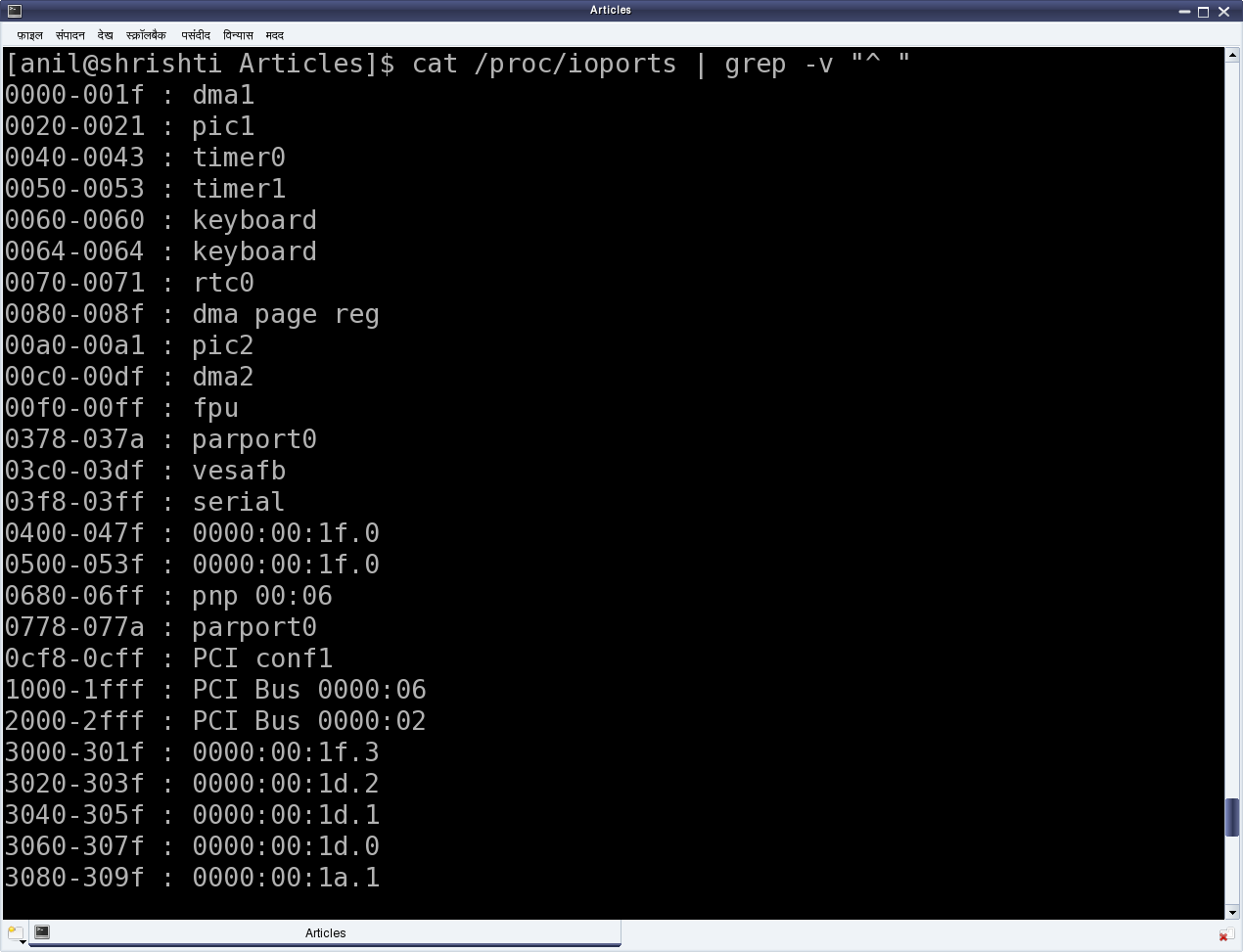
The basic question may arise, as to which all devices are I/O mapped and what are the port addresses of these devices. The answer is pretty simple. As per x86-specific, all these devices & their mappings are x86 standard and hence pre-defined. Figure 13 shows a snippet of these mappings through the kernel window /proc/ioports. The listing includes pre-defined DMA, timer, RTC, serial, parallel, PCI bus interfaces to name a few.

Figure 13: x86-specific I/O ports

Figure 13: x86-specific I/O ports

Simplest the serial on x86 platform

For example, the first serial port is always I/O mapped from 0x3F8 to 0x3FF. But what does this mapping mean? What do we do with this? How does it help us to use the serial port?
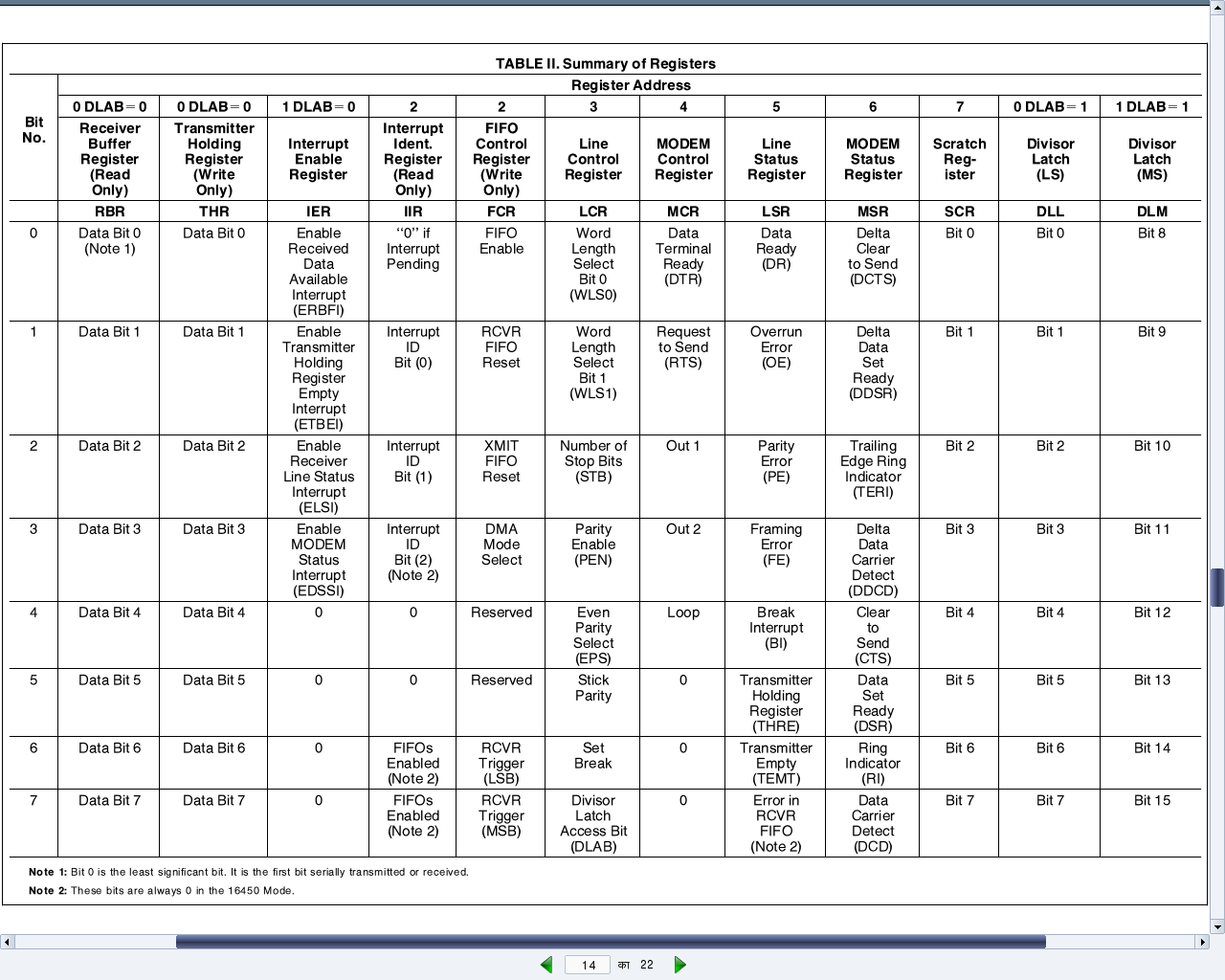
That is where a data-sheet of the device controlling the corresponding port needs to be looked up. Serial port is controlled by the serial controller device, commonly known as an UART (Universal Asynchronous Receiver/Transmitter) or at times a USART (Universal Synchronous/Asynchronous Receiver/Transmitter). On PCs, the typical UART used is PC16550D. The data-sheet (uart_pc16550d.pdf) for the same has also been included in the self-extracting LDDK-Package.sh, used for the Linux device driver kit. Figure 14 shows the relevant portion of it.

In general, from where & how do we get these device data-sheets? Typically, an on-line search with the corresponding device number should yield their data-sheet links. And how does one get the device number? Simple, by having a look at the device. If it is inside a desktop, open it up and check it out. Yes, this is the least you may have to do to get going with the hardware for writing device drivers. Assuming all this hacking has been done, it is time to peep into the data-sheet of UART PC16550D.

For a device driver writer, the usual sections of interest in a data-sheet are the ones related to registers of the device. Why? As, it is these registers, which a device driver writer need to read from and/or write in to finally use the device. Page 14 of the data-sheet (also shown in Figure 14) shows the complete table of all the twelve 8-bit registers present in the UART PC16550D. Each of the 8 rows corresponds to the respective bit of the registers. Also, note that the register addresses start from 0 and goes till 7. The interesting thing to note about this is that a data-sheet always gives the register offsets, which then need to be added to the base address of the device, to get the actual register addresses. Who decides the base address and where is it obtained from? Base addresses are typically board/platform specific, unless they are dynamically configurable like in the case of PCI devices. In the case here, i.e. serial device on x86, it is dictated by the x86 architecture – and that is what precisely was the starting serial port address mentioned above – 0x3F8. And the eight register offsets 0 to 7 are the ones exactly mapping to the eight port addresses 0x3F8 to 0x3FF. So, these are the actual addresses to be read or written for reading or writing the corresponding serial registers, to achieve the desired serial operations, as per the register descriptions.

Figure 14: Registers of UART PC16550D

Figure 14: Registers of UART PC16550D

All the serial register offsets and the register bit masks are defined in the header <linux/serial_reg.h>. So, rather than hard coding these values from the data-sheet, the corresponding macros could be used instead. All the following code uses these macros along with the following:

#define SERIAL_PORT_BASE 0x3F8

Operating on the device registers

To summarize all these decoding of UART PC16550D data-sheet, here are a few examples of how to do read and write operations of the serial registers and their bits.

Reading and writing the “Line Control Register (LCR)”:

u8 val;

val = inb(SERIAL_PORT_BASE + UART_LCR /* 3 */);
outb(val, SERIAL_PORT_BASE + UART_LCR /* 3 */);

Setting and clearing the “Divisor Latch Access Bit (DLAB)” in LCR:

u8 val;

val = inb(SERIAL_PORT_BASE + UART_LCR /* 3 */);

/* Setting DLAB */
val |= UART_LCR_DLAB /* 0x80 */;
outb(val, SERIAL_PORT_BASE + UART_LCR /* 3 */);

/* Clearing DLAB */
val &= ~UART_LCR_DLAB /* 0x80 */;
outb(val, SERIAL_PORT_BASE + UART_LCR /* 3 */);

Reading and writing the “Divisor Latch”:

u8 dlab;
u16 val;

dlab = inb(SERIAL_PORT_BASE + UART_LCR);
dlab |= UART_LCR_DLAB; // Setting DLAB to access Divisor Latch
outb(dlab, SERIAL_PORT_BASE + UART_LCR);

val = inw(SERIAL_PORT_BASE + UART_DLL /* 0 */);
outw(val, SERIAL_PORT_BASE + UART_DLL /* 0 */);

Blinking an LED

To get a real experience of the low-level hardware access and Linux device drivers, the best way would be to play with the Linux device driver kit (LDDK). However, just for the feel of low-level hardware access, a blinking light emitting diode (LED) may be tried as follows:

  • Connect a light emitting diode (LED) with a 330 ohm resistor in series across the pin 3 (Tx) & pin 5 (Gnd) of the DB9 connector of your PC.
  • Pull up & down the transmit (Tx) line with a 500 ms delay, by loading the blink_led driver using insmod blink_led.ko, and then unloading the driver using rmmod blink_led, before reloading.

Below is the blink_led.c, to be compiled into the blink_led.ko driver, by running make using the usual driver Makefile:

#include <linux/module.h>
#include <linux/version.h>
#include <linux/types.h>
#include <linux/delay.h>
#include <asm/io.h>

#include <linux/serial_reg.h>

#define SERIAL_PORT_BASE 0x3F8

int __init init_module()
{
	int i;
	u8 data;

	data = inb(SERIAL_PORT_BASE + UART_LCR);
	for (i = 0; i < 5; i++)
	{
		/* Pulling the Tx line low */
		data |= UART_LCR_SBC;
		outb(data, SERIAL_PORT_BASE + UART_LCR);
		msleep(500);
		/* Defaulting the Tx line high */
		data &= ~UART_LCR_SBC;
		outb(data, SERIAL_PORT_BASE + UART_LCR);
		msleep(500);
	}
	return 0;
}

void __exit cleanup_module()
{
}

MODULE_LICENSE("GPL");
MODULE_AUTHOR("Anil Kumar Pugalia <email@sarika-pugs.com>");
MODULE_DESCRIPTION("Blinking LED Hack");

Summing up

Are you wondering as where has Shweta gone today? She has bunked all the classes. Watch out for the next article to find out why.

Ninth Article >>

Notes

  1. The above example is to demonstrate how bare bone easy the low level access could get. However, to make it more perfect, one should use the APIs request_region() and release_region(), respectively before and after the accesses of the I/O port addresses, respectively to acquire and release the range of I/O port addresses to access.
  2. Also, you might have observed that there is no module_init() & module_exit() in the above driver. But nonetheless, insmod & rmmod do work. How is that? That is because init_module() & cleanup_module() are the predefined names for the constructor & the destructor, respectively. Hence, you do not need module_init() & module_exit() to translate your other function names to these predefined ones. Caution: Since kernel 2.6 onwards, if you are building the driver into the kernel, you should define your own function names & use module_init() & module_exit().
   Send article as PDF   

Solve Non-linear Equations using Linear Algebra

This eighth article of the mathematical journey through open source, solves non-linear equations using linear algebra in octave.

<< Seventh Article

Hope you have found out the vegetable prices from the vegetable seller, who had placed various equal priced stacks for sell at ₹30. Recall: One stack had 4 lemons, 7 cucumbers, 9 tomatoes. Another had 2 lemons, 5 cucumbers, 27 tomatoes. And the third had just 9 cucumbers & 15 tomatoes. Prices would be ₹2.00 per lemon, ₹2.50 per cucumber, ₹0.50 per tomato, computed as follows:

$ octave -qf
octave:1> N = [
> 4 7 9
> 2 5 27
> 0 9 15
> ];
octave:2> inv(N) * [30; 30; 30]
ans =

   2.00000
   2.50000
   0.50000

octave:3>

Polynomial solving

Note that though in 3 variables, even this was a linear equation. How about solving higher order polynomial equations, meaning of squares, cubes, … of the variables. Say, we want a solution for x in x3 + 3x2 + 3x + 1 = 0. Simple! First define a function for this polynomial. And, then use the function solver fsolve() to solve it, as follows:

$ octave -qf
octave:1> function y = f(x)
> y = x^3 + 3*x^2 + 3*x + 1;
> endfunction
octave:2> [x, fval, info] = fsolve(@f, 0)
x = -0.99999
fval = 0
info =  1
octave:3>

This indicates the value of x as -0.99999 ≈ -1 as the solution to the function f(x), yielding a function value of 0, with info = 1 indicating that solution is obtained. And you may verify the answer by calling the function f with the variable x as f(x) on the octave prompt. The second parameter in fsolve() is the initial guess of the solution.

Geometry solving

With the power in hand, why not solve more complex geometric problems? Last time we found the intersection point of two straight lines. How about intersection of a straight line and a circle? Let us have the following straight line and circle, defined in the Cartesian coordinate system, i.e. the x-y system:
4x + 3y = 24
x2 + y2 = 25

To be able to solve it using fsolve(), let’s consider the different variables x & y as fields of a vector X, say x as X(1), y as X(2). Then, the equations can be re-written as follows:
4 * X(1) + 3 * X(2) = 24
X(1)^2 + X(2)^2 = 25
and hence could be solved using fsolve() as follows:

$ octave -qf
octave:1> function Y = F(X)
> Y(1) = 4 * X(1) + 3 * X(2) - 24;
> Y(2) = X(1)^2 + X(2)^2 - 25;
> endfunction
octave:2> [Y, Fval, info] = fsolve(@F, [0; 0])
warning: matrix singular to machine precision, rcond = 0
warning: attempting to find minimum norm solution
warning: dgelsd: rank deficient 2x2 matrix, rank = 1
Y =

   3.0000
   4.0000

Fval =

   0.0000e+00   2.6691e-07

info =  1
octave:3>

So, (3, 4) is the intersecting point – can be verified by substituting back into the above equations.

Solve it

Equipped with this knowledge, here’s a couple of teasers for your brain:

  1. Find three numbers, product of which is 60; sum of their squares is 50; and their sum is 12.
  2. A sage came to a temple with some flowers and dipped all of them into the first magical pond of the temple and got those back, squared. Then, he offered some of those flowers in the temple and dipped the remaining flowers into the second magical pond to get those back, doubled. Then, he again offered the same number of flowers, as offered earlier, and dipped the remaining flowers into the third magical pond to get those back, tripled, which he took back with him as prasadam. Now, the number of flowers he took back with him, is same as in each one of his offerings. Also, what he took back with him is thrice the number of flowers he came with to the temple. How many flowers did he come in with?

If you think, you have got the octave code for solving the above, you may post the solution in the comments below. And as we move on, we would get into specifically playing with polynomials.

Ninth Article >>

   Send article as PDF   

Generic Hardware Access in Linux

This seventh article, which is part of the series on Linux device drivers, talks about accessing hardware in Linux.

<< Sixth Article

Shweta was all jubilant about her character driver achievements, as she entered the Linux device drivers laboratory on the second floor of her college. Why not? Many of her classmates had already read her blog & commented on her expertise. And today was a chance for show-off at an another level. Till now, it was all software. Today’s lab was on accessing hardware in Linux. Students are expected to “learn by experimentation” to access various kinds of hardware in Linux on various architectures over multiple lab sessions here.

As usual, the lab staff are a bit skeptical to let the students directly get onto the hardware, without any background. So to build their background, they have prepared some slide presentations, which can be accessed from SysPlay’s website.

Generic hardware interfacing

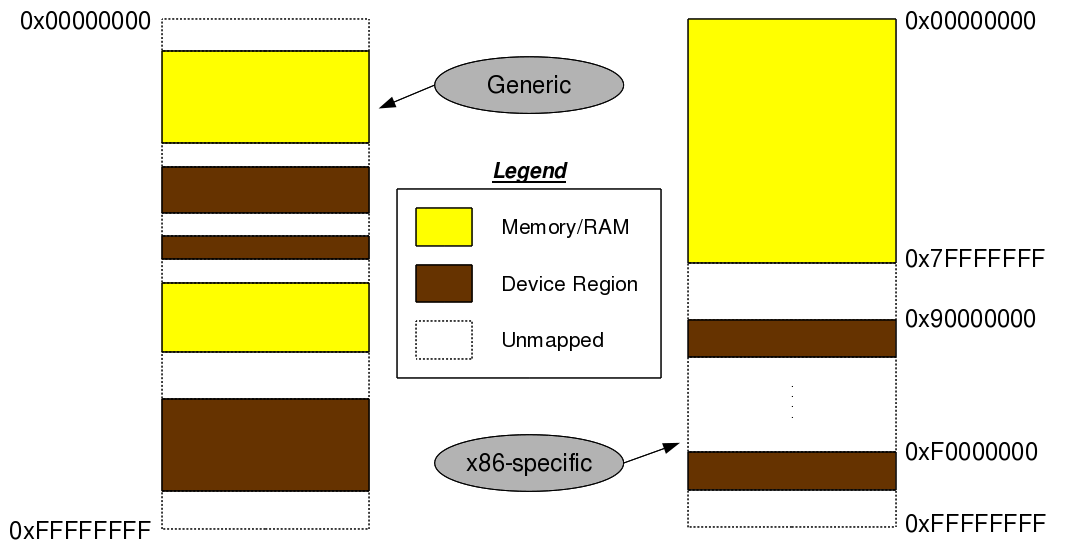
As every one settled in the laboratory, lab expert Priti started with the introduction to hardware interfacing in Linux. Skipping the theoretical details, the first interesting slide was about the generic architecture-transparent hardware interfacing. See Figure 11.

Figure 11: Hardware mapping

Figure 11: Hardware mapping

The basic assumption being that the architecture is 32-bit. For others, the memory map would change accordingly. For 32-bit address bus, the address/memory map ranges from 0 (0x00000000) to ‘232 – 1′ (0xFFFFFFFF). And an architecture independent layout of this memory map would be as shown in the Figure 11 – memory (RAM) and device regions (registers & memories of devices) mapped in an interleaved fashion. The architecture dependent thing would be what these addresses are actually there. For example, in an x86 architecture, the initial 3GB (0x00000000 to 0xBFFFFFFF) is typically for RAM and the later 1GB (0xC0000000 to 0xFFFFFFFF) for device maps. However, if the RAM is less, say 2GB, device maps could start from 2GB (0x80000000).

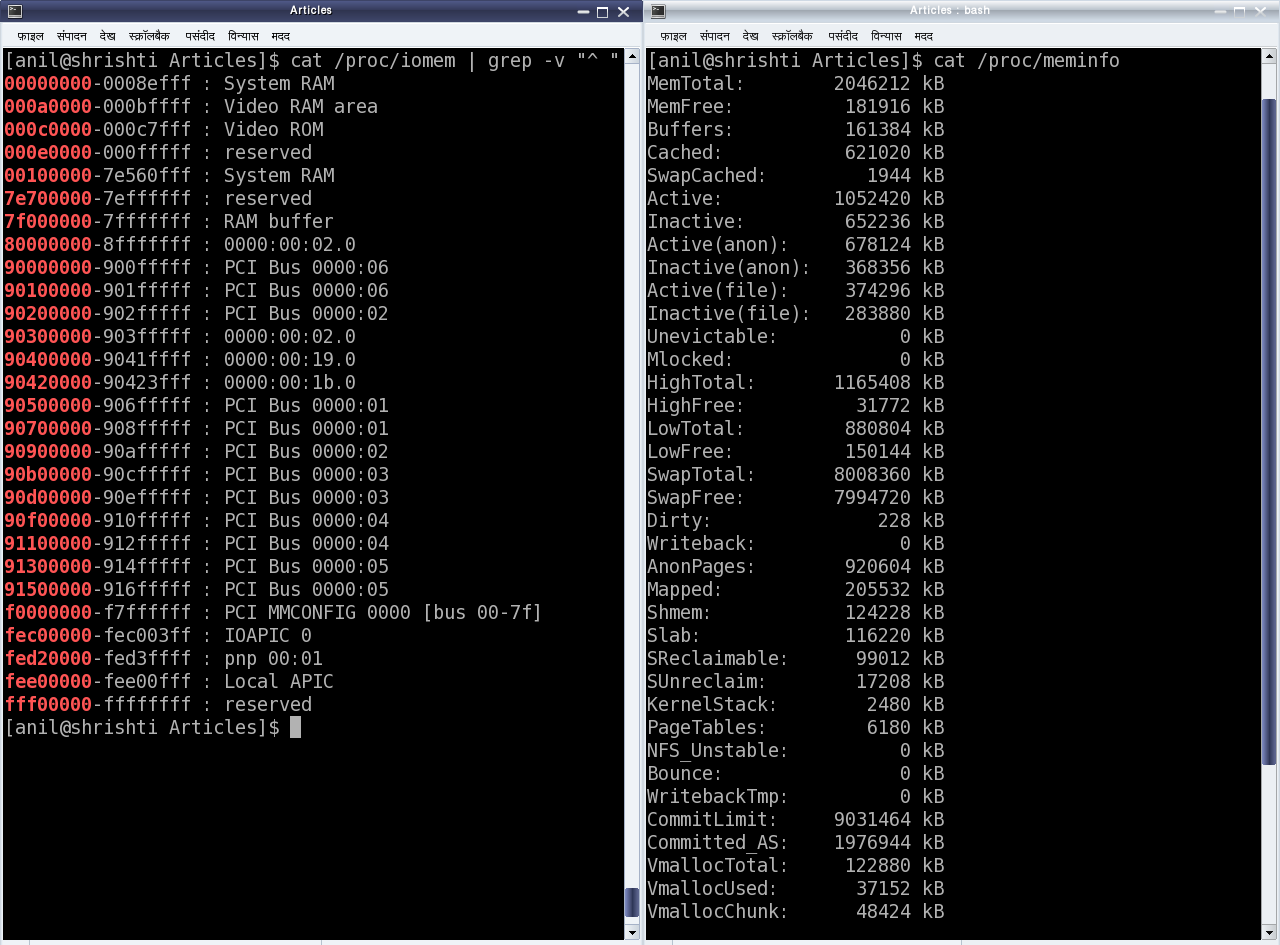
Type in cat /proc/iomem to list the memory map on your system. cat /proc/meminfo would give you an approximate RAM size on your system. Refer to Figure 12 for a snapshot.

Figure 12: Physical & bus addresses on an x86 system

Figure 12: Physical & bus addresses on an x86 system

Irrespective of the actual values, the addresses referring to RAM are termed as physical addresses. And the addresses referring to device maps are termed as bus addresses, as these devices are always mapped through some architecture-specific bus. For example, PCI bus in x86 architecture, AMBA bus in ARM architectures, SuperHyway bus in SuperH (or SH) architectures, GX bus on PowerPC (or PPC), etc.

All the architecture dependent values of these physical and bus addresses are either dynamically configurable or are to be obtained from the datasheets (i.e. hardware manuals) of the corresponding architecture processors/controllers. But the interesting part is that, in Linux none of these are directly accessible but are to be mapped to virtual addresses and then accessed through that. Thus, making the RAM and device accesses generic enough, except just mapping them to virtual addresses. And the corresponding APIs for mapping & unmapping the device bus addresses to virtual addresses are:

#include <asm/io.h>

void *ioremap(unsigned long device_bus_address, unsigned long device_region_size);
void iounmap(void *virt_addr);

These are prototyped in <asm/io.h>. Once mapped to virtual addresses, it boils down to the device datasheet, as to which set of device registers and/or device memory to read from or write into, by adding their offsets to the virtual address returned by ioremap(). For that, the following are the APIs (prototyped in the same header file <asm/io.h>):

#include <asm/io.h>

unsigned int ioread8(void *virt_addr);
unsigned int ioread16(void *virt_addr);
unsigned int ioread32(void *virt_addr);
unsigned int iowrite8(u8 value, void *virt_addr);
unsigned int iowrite16(u16 value, void *virt_addr);
unsigned int iowrite32(u32 value, void *virt_addr);

Accessing the video RAM of “DOS” days

After this first set of information, students were directed for the live experiments. They were suggested to do an initial experiment with the video RAM of “DOS” days to understand the usage of the above APIs. Shweta got onto the system – displayed the /proc/iomem window – one very similar to as shown in Figure 12. From there, she got the video RAM address ranging from 0x000A0000 to 0x000BFFFF. And with that she added the above APIs with appropriate parameters into the constructor and destructor of her already written null driver to convert it into a vram driver. Then, she added the user access to the video RAM through read & write calls of the vram driver. Here’s what she coded in the new file video_ram.c:

#include <linux/module.h>
#include <linux/version.h>
#include <linux/kernel.h>
#include <linux/types.h>
#include <linux/kdev_t.h>
#include <linux/fs.h>
#include <linux/device.h>
#include <linux/cdev.h>
#include <linux/uaccess.h>
#include <asm/io.h>

#define VRAM_BASE 0x000A0000
#define VRAM_SIZE 0x00020000

static void __iomem *vram;
static dev_t first;
static struct cdev c_dev;
static struct class *cl;

static int my_open(struct inode *i, struct file *f)
{
	return 0;
}
static int my_close(struct inode *i, struct file *f)
{
	return 0;
}
static ssize_t my_read(struct file *f, char __user *buf, size_t len, loff_t *off)
{
	int i;
	u8 byte;

	if (*off >= VRAM_SIZE)
	{
		return 0;
	}
	if (*off + len > VRAM_SIZE)
	{
		len = VRAM_SIZE - *off;
	}
	for (i = 0; i < len; i++)
	{
		byte = ioread8((u8 *)vram + *off + i);
		if (copy_to_user(buf + i, &byte, 1))
		{
			return -EFAULT;
		}
	}
	*off += len;

	return len;
}
static ssize_t my_write(
		struct file *f, const char __user *buf, size_t len, loff_t *off)
{
	int i;
	u8 byte;

	if (*off >= VRAM_SIZE)
	{
		return 0;
	}
	if (*off + len > VRAM_SIZE)
	{
		len = VRAM_SIZE - *off;
	}
	for (i = 0; i < len; i++)
	{
		if (copy_from_user(&byte, buf + i, 1))
		{
			return -EFAULT;
		}
		iowrite8(byte, (u8 *)vram + *off + i);
	}
	*off += len;

	return len;
}

static struct file_operations vram_fops =
{
	.owner = THIS_MODULE,
	.open = my_open,
	.release = my_close,
	.read = my_read,
	.write = my_write
};

static int __init vram_init(void) /* Constructor */
{
	int ret;
	struct device *dev_ret;

	if ((vram = ioremap(VRAM_BASE, VRAM_SIZE)) == NULL)
	{
		printk(KERN_ERR "Mapping video RAM failed\n");
		return -ENOMEM;
	}
	if ((ret = alloc_chrdev_region(&first, 0, 1, "vram")) < 0)
	{
		return ret;
	}
	if (IS_ERR(cl = class_create(THIS_MODULE, "chardrv")))
	{
		unregister_chrdev_region(first, 1);
		return PTR_ERR(cl);
	}
	if (IS_ERR(dev_ret = device_create(cl, NULL, first, NULL, "vram")))
	{
		class_destroy(cl);
		unregister_chrdev_region(first, 1);
		return PTR_ERR(dev_ret);
	}

	cdev_init(&c_dev, &vram_fops);
	if ((ret = cdev_add(&c_dev, first, 1)) < 0)
	{
		device_destroy(cl, first);
		class_destroy(cl);
		unregister_chrdev_region(first, 1);
		return ret;
	}
	return 0;
}

static void __exit vram_exit(void) /* Destructor */
{
	cdev_del(&c_dev);
	device_destroy(cl, first);
	class_destroy(cl);
	unregister_chrdev_region(first, 1);
	iounmap(vram);
}

module_init(vram_init);
module_exit(vram_exit);

MODULE_LICENSE("GPL");
MODULE_AUTHOR("Anil Kumar Pugalia <email@sarika-pugs.com>");
MODULE_DESCRIPTION("Video RAM Driver");

Summing up

Then, Shweta repeated the following steps:

  • Build the vram driver (video_ram.ko file) by running make with the same Makefile changed to build this driver.
  • Usual load of the driver using insmod video_ram.ko.
  • Usual write into /dev/vram, say using echo -n “0123456789” > /dev/vram.
  • Read the /dev/vram contents using xxd /dev/vram | less. The usual cat /dev/vram also can be used but that would give all binary content. xxd shows them up as hexadecimal in centre with the corresponding ASCII along the right side.
  • Usual unload the driver using rmmod video_ram.

Note 1: Today’s systems typically use separate video cards having their own video RAM. So, the video RAM used in the “DOS days”, i.e. the one mentioned in this article is unused and many a times not even present. Hence, playing around with it, is safe, without any effect on the system, or the display.

Note 2: Moreover, if the video RAM is absent, the read/write may not be actually reading/writing, but just sending/receiving signals in the air. In such a case, writes would not do any change, and reads would keep on reading the same value – thus ‘xxd’ showing the same values.

It was yet half an hour left for the practical class to be over and a lunch break. So, Shweta decided to walk around and possibly help somebody in their experiments.

Eighth Article >>

Notes:

  1. When a pointer is tagged with __iomem, it enables that pointer for compiler checks &/or optimizations, relevant for I/O mapped memory.

Other References:

  1. Translating addresses in Kernel Space on different architectures
  2. Addressing Concepts in Linux
  3. Linux Memory Management Overview
   Send article as PDF   
Google Circle
Join my Circle on Google+

Plugin by Social Author Bio